Backup
You can use the backup functionality in the Data Handling tab to persist data in an event-driven manner during the runtime of the stream. The data can also be stored on the hard disk with pre- and post-trigger times. In this case, the user is responsible for cleaning up the data.
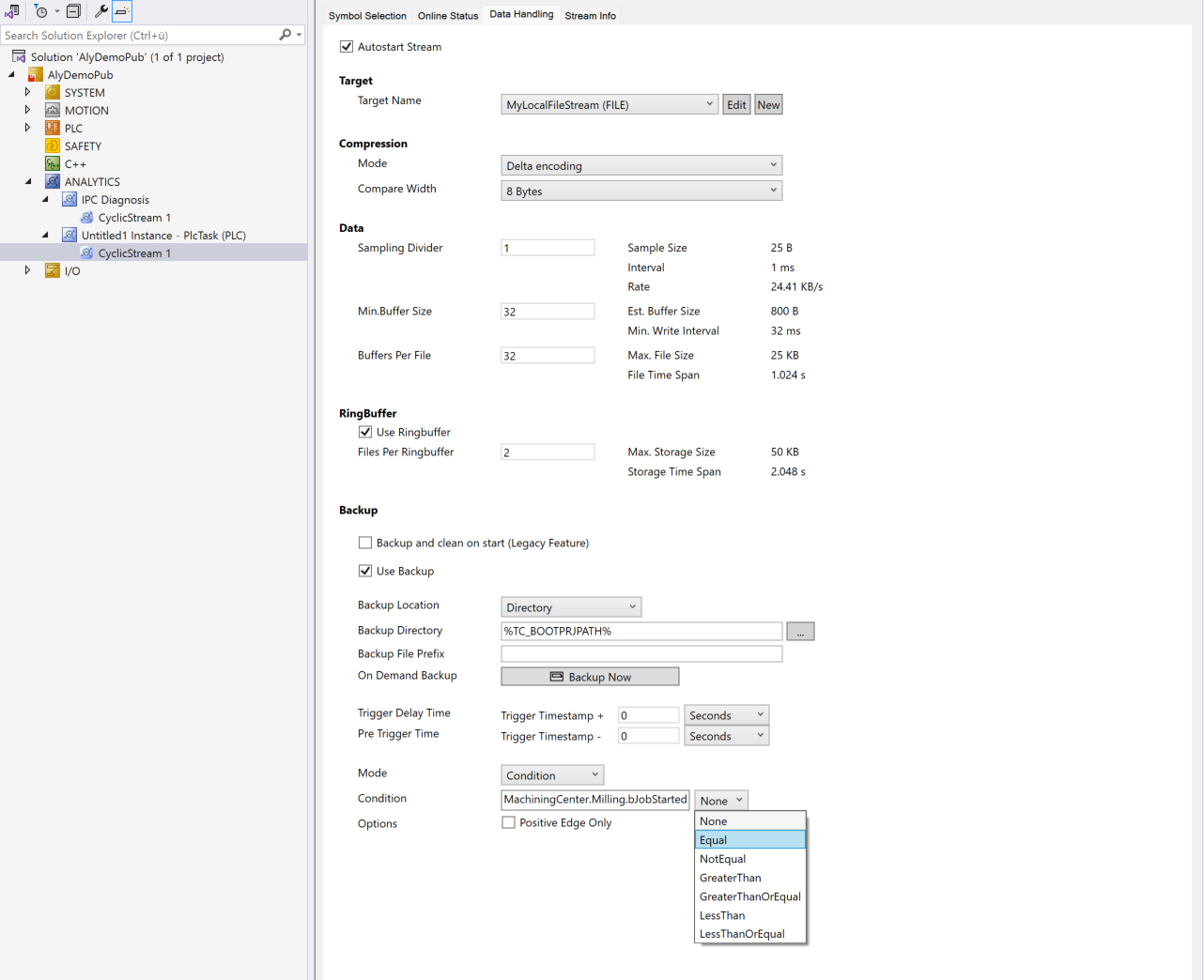
The Backup and clean on start option refers to an obsolete function that is still listed here for compatibility reasons. If the function is used, the current buffer of the recording is stored in a backup folder when restarting in file mode. After the system is restarted, a new buffer is created until the system is restarted again. The current buffer is then packed back into the backup directory and the old backup is irretrievably deleted.
The backup function available with Analytics Logger version 34.3.0 offers more flexibility. As described above, several backups can be saved on an event basis.
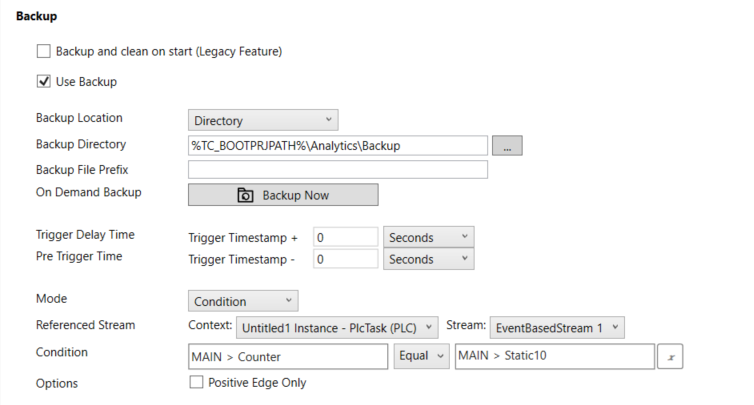
Use Backup: This option must be activated for the following settings to take effect.
Backup Location: Allows you to choose between the Directory and Path options.
Backup Directory / Backup Path: The Backup Directory option allows the choice of a folder path. A further folder level is added below this folder. The folder has the structure “{SymbolHash}-{Prefix}-{Timestamp}”. The backup files are saved in this folder. The Backup Path also allows the choice of a folder path. However, no folder level is created in between and the backup files are stored directly in the configured path.
Backup File Prefix: This option is only visible if the Backup Location Directory is selected. The backup file prefix is part of the additional folder level.
On Demand Backup: Enables the immediate creation of a backup at the click of a mouse, regardless of the set triggers.
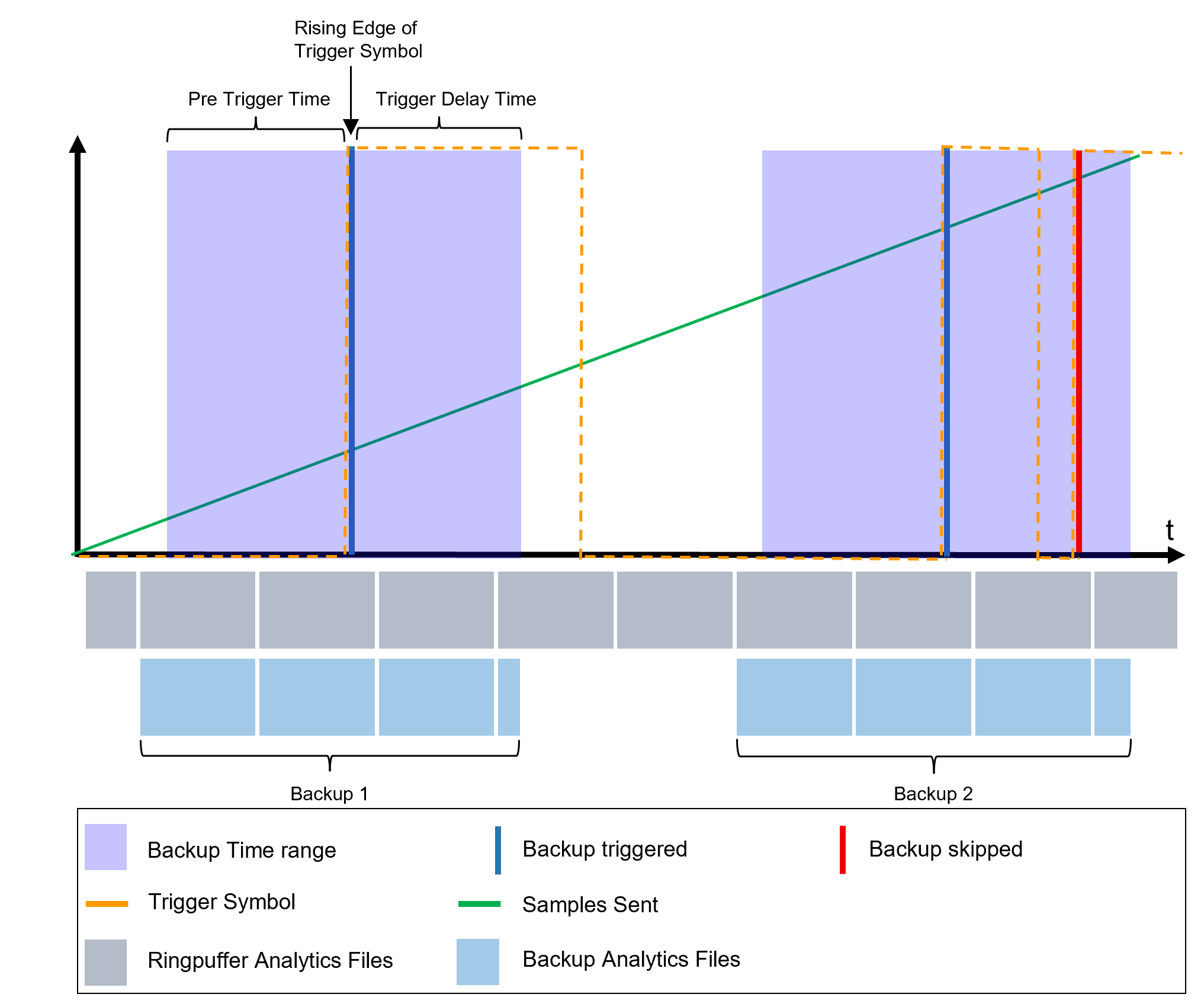
Pre Trigger Time: Time period before the trigger event. Backup files that do not contain any data within this time range are removed from the backup.
Trigger Delay Time: Time period after the trigger event. The backup continues to run during this time until it is saved.
The following illustration shows how the Trigger Delay Time and Pre Trigger Time work:
The following options define the event that should trigger the action.
Mode: Here you can choose between the options Condition, On Change, and On Change Ends.
Referenced Stream: The Referenced Stream option allows you to use symbols from a different stream as the basis for the condition. By default, the condition refers to the currently configured stream. To do this, select Context and Stream from the corresponding drop-down lists.
Condition: Configure a condition that triggers the backup. The condition has a left-hand side and, depending on the operator, also a right-hand side.
Constants: To the right of the condition is a button for switching to constant mode. You can use this to enter a constant in the text field.
On Change: In On Change mode, you can configure only the left side of the condition. If the configured variable changes, a backup is triggered.
On Change Ends: With the On Change Ends mode, you can configure only the left side of the condition. When the configured variable stops changing, the action is triggered. (Example: 1 2 3 4 4 [Trigger] 4 4 …)
Options: With the Positive Edge Only option, only positive edges are used to trigger the condition. If this option is activated, the Initial Active option can also be selected. With Initial Active, the condition is satisfied at startup.