Miscellaneous
The last tab in the basic settings contains various settings. The first part is about the driver versions that are used. The version selected here (default: Latest) is automatically downloaded to the target system (controller) when the TwinCAT configuration is activated. This applies to all operating systems under 4026, eliminating the need for additional installation in the form of packages on the target system itself.
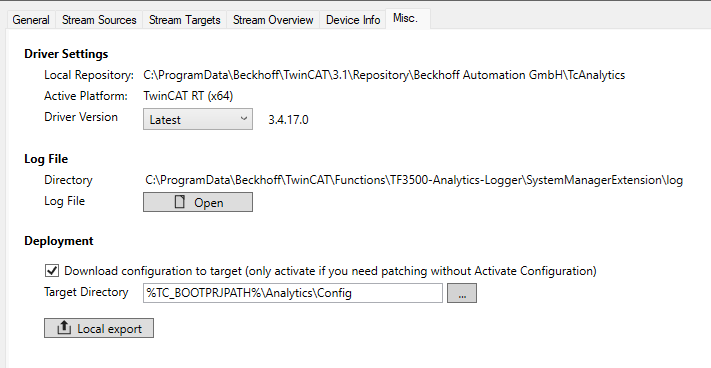
The log for the Analytics Logger System Manager extension can also be viewed here. Beckhoff Support may also ask you to provide this file when handling a support request.
Copy Deployment
You can also enable and configure a type of patch mechanism using Copy Deployment.
Notice | |
TwinCAT restart Use this option only if it will no longer be possible to activate the configuration (TwinCAT Activate Configuration) in the future, but changes still need to be made! A TwinCAT restart is still required! |
Copy Deployment allows you to make changes using patch files in a target directory and apply them after restarting TwinCAT. the following workflow describes how Copy Deployment works:
Workflow:
- 1. Enable Copy Deployment – Check the “Download configuration to target” box in the Deployment section.
- 2. Select the target directory – TwinCAT saves this path in the driver settings. After step 3, the driver reads the patch files from this folder.
- 3. Activate Configuration – Activate the configuration with the target directory once on the target system using TwinCAT Activate Configuration. Only then will the driver know where to find the patch files.
- 4. Make changes - You can then make changes to the logger configuration. If you make only one change after step 6, the configuration remains unchanged.
- 5. Export patch files – Use the “Local export” button to export the modified configuration as a JSON patch file. The export creates one folder containing one patch file for each stream. The export structure follows this format: <Export folder>/<StreamName>_<ID>/Config.json. The following section describes the format of a patch file in more detail.
- 6. Adding and/or removing symbols (optional) – You can extend the JSON structures of the patch files by adding an array of symbols. This allows you to add or remove symbols for logging. (See the examples in the following section)
- 7. Placing the patch files: Place the patch files in the target system under the Target Directory (see step 2), following the same folder structure as in the export.
- 8. Restart TwinCAT.
- After that, the driver loads the patch files and runs using this configuration.
Notice | |
Activating the configuration Activate the configuration using the Target Directory once so that the driver can read the patch files from the Target Directory! |
Patch file format
Each Config.json file contains:
Level | Field | Description |
|---|---|---|
1 | InitData | The complete stream initialization data (encoded). Always present. |
1 | InitParameters | This object contains the configuration for the Analytics Logger stream. These parameters should not be changed and are intended solely to provide transparency within the patch file. |
1 | Symbols | Optional list of symbol changes (add or disable). |
2 | Name | Complete name of the symbol (required) |
2 | TypeName | Symbol type name (required when adding a symbol) |
2 | Flags | Additional information. Optional. Flags = 2 means that Size is specified in bits rather than bytes. |
2 | Size | Symbol size (Required when adding a symbol) |
2 | IdxGrp | Symbol index group (decimal) (required when adding a symbol if symbolic mapping is disabled. For example, with Device Streams) |
2 | IdxOffs | Symbol index offset (decimal) (required when adding a symbol if symbolic mapping is disabled.) For example, with Device Streams) |
2 | Properties | An array consisting of multiple key-value pairs. (Required when adding a pointer or a reference, or when disabling a symbol) (See examples in the following section) |
Add symbol
To add a new symbol to the stream, add an entry with name, data type, and size.
Example: Add MAIN.VarInt64 (8-byte integer):
{
    "InitData": "...",
    "Symbols": [
        {
            "Name": "MAIN.VarInt64",
            "TypeName": "LINT",
            "Size": 8
        }
    ]
}Example: Add Inputs.Frm0State of a Device (2-byte integer):
{
    "InitData": "...",
    "Symbols": [
        {
            "Name": "Inputs.Frm0State",
            "TypeName": "UINT",
            "Size": 2
            "IdxGrp": 61488,
            "IdxOffs": 1520,
        }
    ]
}Example: Adding symbols with bit data types:
{
    "InitData": "...",
    "Symbols": [
        {
            "Name": "MAIN.VarBit1",
            "TypeName": "BIT",
            "Flags": 2,
            "Size": 1
        },
        {
            "Name": "MAIN.VarBit4",
            "TypeName": "BIT",
            "Flags": 2,
            "Size": 4
        }
    ]
}Example: Adding a pointer:
{
    "InitData": "...",
    "Symbols": [
        {
            "Name": "MAIN.PtrToInt^",
            "TypeName": "UINT",
            "Size": 2
            "Properties": [
                {
                    "Name": "DataAccess",
                    "Value": "Handle"
                }
            ]
        }
    ]
}Example: Adding references:
{
    "InitData": "...",
    "Symbols": [
        {
            "Name": "MAIN.RefToInt",
            "TypeName": "UINT",
            "Size": 2
            "Properties": [
                {
                    "Name": "DataAccess",
                    "Value": "Handle"
                }
            ]
        }
    ]
}
Disable symbol
To disable an existing symbol, you reference it by name and set its “Disable” property.
Example: Disable MAIN.VarInt32:
{
    "InitData": "...",
    "Symbols": [
        {
            "Name": "MAIN.VarInt32",
            "Properties": [
                { "Name": "Disable" }
            ]
        }
    ]
}
Combined (add + disable)
Both operations can be combined into a single patch file.
Edit stream configuration
Some settings in the stream configuration can also be edited via the patch file. The settings are described below and explained with examples.
Level | Field | Description |
|---|---|---|
1 | Mqtt | The MQTT section defines an MQTT destination to which the recorded data is sent. |
2 | SamplesPerBuffer | Number of samples per transmitted buffer. |
2 | CompressionWidth | Compression width in bytes (0 = no compression). |
2 | SamplingDivider | Sampling rate divider (0/1 = every sample). |
2 | SystemIdAlias | Optional alias for the system ID. |
2 | MqttConfig | Embedded MQTT connection parameters (see below). |
3 | QoS | MQTT Quality of Service (0, 1, or 2). |
3 | TcpPort | Broker's TCP port (default 1883) |
3 | ClientId | MQTT client ID |
3 | Host | IP address or host name of the broker. |
3 | Topic | Base topic under which data is published. |
3 | UserName | User name used for authentication. |
3 | UserPwd | Password for authentication. |
3 | Tls | TLS/certificate parameters (see the “TLS parameters” section). |
4 | Version | TLS version, e.g., “tlsv1.2” or “tlsv1.3” |
4 | CaFile | Path to the CA certificate file. |
4 | CertFile | Path to the client certificate file. |
4 | KeyFile | Path to the file containing the client's private key. |
4 | KeyPwd | Password/passphrase for the private key. |
Example: Enable MQTT destination:
{
    "InitData": "...",
    "Mqtt": {
        "SamplesPerBuffer": 32,
        "CompressionWidth": 8,
        "MqttConfig": {
            "TcpPort": 1883,
            "Host": "127.0.0.1",
            "Topic": "Analytics/Stream1"
        }
    }
}
Example: MQTT destination with TLS encryption (certificates as file paths):
{
    "InitData": "...",
    "Mqtt": {
        "MqttConfig": {
            "TcpPort": 8883,
            "Host": "broker.example.com",
            "Topic": "Analytics/Stream1",
            "Tls": {
                "Version": "tlsv1.2",
                "CaFile": "C:\\Certs\\ca.crt",
                "CertFile": "C:\\Certs\\client.crt",
                "KeyFile": "C:\\Certs\\client.key",
                "KeyPwd": "secret"
            }
        }
    }
}
File destination configuration
Level | Field | Description |
|---|---|---|
1 | File | The “File” section defines a folder where the recorded data is written. |
2 | BuffersPerFile | Number of buffers per file |
2 | SamplesPerBuffer | Number of samples per buffer. |
2 | CompressionWidth | Compression width in bytes (0 = no compression). |
2 | FilesInRingBuffer | Number of files in the ring buffer (0 = no ring buffer). |
2 | SamplingDivider | Sampling rate divider (0/1 = every sample). |
2 | FilePath | Destination path or file name for the recording. |
2 | SystemIdAlias | Optional alias for the system ID. |
Example: Enable file destination with ring buffer:
{
    "InitData": "...",
    "File": {
        "SamplesPerBuffer": 64,
        "BuffersPerFile": 100,
        "FilesInRingBuffer": 10,
        "FilePath": "C:\\DataStore\\FileStreamTarget"
    }
}