Create screenshot
There is a functionality in the UI Client to create screenshots. This function can be triggered from the application via JavaScript.
tcuiclient.postMessage("System.screenshot",
    {
        "path": "",
        "fileName": "",
        "querySelectorAll": "" ,
        "selectorIndex": 0
    }
).then((result) => {});
Parameter
Name | Type | Description |
|---|---|---|
path | string | Path specification on the system where the screenshot is to be saved. |
fileName | string | Name of the screenshot. The name is extended by a timestamp and also by an index. The index is incremented if several elements are found. "testScreenshot-2026-02-09T08-15-01.108Z-0" |
querySelectorAll | string | QuerySelector to search for elements on the website. The syntax is identical to the "document.querySelectorAll" from JavaScript or TypeScript. |
selectorIndex (optional) | number | Index of the element from which a screenshot is to be created. If more than one element was found via the querySelector, a screenshot of all elements is created without "selectorIndex". By specifying "selectorIndex", only a screenshot of the nth element is taken. 0 |
Callback
Type | Description |
|---|---|
result | result: resultMessage: |
Example (Dev-Tools):
- 1. Start the UI Client
- 2. Open the Developer Tools
- 3. Open the Beckhoff CMI
window.location.href = 'https://cmi.beckhoff-cloud.com/Application';- 4. Execute the code to create a screenshot. Customize the code if necessary.
tcuiclient.postMessage("System.screenshot",
    {
        "path": "C:\\tmp",
        "fileName": "testScreenshot",
        "querySelectorAll": "#MachineBig_Historize>.TcHmi_Controls_System_TcHmiContainer-template"
    }
).then((result) => {});- 5. Go to the folder C:\tmp
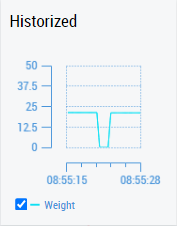
- A screenshot of the Historized Container has been successfully created.
 | The screenshot functionality is available from version 1.11.1. |