Test Case Window
After establishing a connection to the target system, all test cases registered with the test controller are displayed in the list.
- 1. Right-click a test case in the Test Case window to open the test case’s context menu.
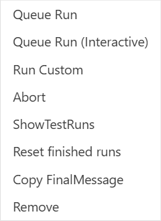
- The context menu for each test case contains the options shown above.
Option | Description |
|---|---|
Queue Run | Starts the test execution of the selected test case. |
Queue Run (Interactive) | The selected test case is executed interactively. You will be asked if you want to start the test after the runtime has started. After the test, you will be asked if you want to return to Config mode. This allows you to configure and start a Scope as needed, or to perform other steps that are important before starting a test but could not be programmed within the test itself. |
Run Custom | A submenu where you can trigger multiple runs of the same test case. |
Abort | Closes the context menu. You will get the same result if you click anywhere else in the GUI outside the context menu. |
Show TestRuns | Displays an overview table showing all test runs for a test case. This is typically used when you want to run a test case multiple times in a row to compare memory usage, the allocation counter, and execution times. |
Reset completed runs | Deletes the results of all test runs that have been executed. |
Copy Final Message | Copies the error message from a test case to the clipboard. |
Remove | Deletes this test case from the list of test cases. To add them again, the test cases must be reinitialized. |
 | For test cases to be displayed in this window, the Autostart boot project option must be enabled. |