Installation
System Requirements
Technical data | Description |
|---|---|
Operating system | Windows 10 |
Target platform | Windows |
Minimum TwinCAT version | TwinCAT 3.1.4026 |
TwinCAT licenses | TF1140 TwinCAT 3 TestFramework |
TwinCAT Package Manager: Installation (TwinCAT 3.1 Build 4026)
Detailed instructions on installing products can be found in the chapter Managing TwinCAT software in the TwinCAT 3.1 Build 4026 installation instructions.
Install the following workload to be able to use the product:
- TF1140 | TwinCAT 3 TestFramework
Licensing
The TF1140 TwinCAT 3 TestFramework provides you with a 7-day trial license that allows you to create and run your tests locally on your engineering device. To use the automatic testing function–for example, tests in a pipeline–you need a license for the full version of the product. Below you will find explanations of both types of licensing.
Licensing the 7-day test version of a TwinCAT 3 Function
 | A 7-day test version cannot be enabled for a TwinCAT 3 license dongle. |
- 1. Start the TwinCAT 3 development environment (XAE).
- 2. Open an existing TwinCAT 3 project or create a new project.
- 3. If you want to activate the license for a remote device, set the desired target system. To do this, select the target system from the Choose Target System drop-down list in the toolbar.
- The licensing settings always refer to the selected target system. When the project is activated on the target system, the corresponding TwinCAT 3 licenses are automatically copied to this system.
- 4. In the Solution Explorer, double-click License in the SYSTEM subtree.
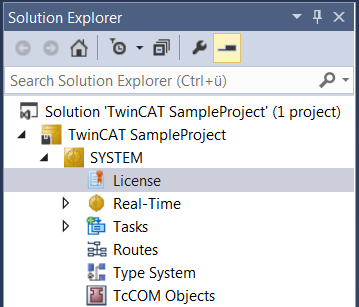
- The TwinCAT 3 license manager opens.
- 5. Open the Manage Licenses tab. In the Add License column, check the check box for the license you want to add to your project (e.g. "TF4100 TC3 Controller Toolbox").
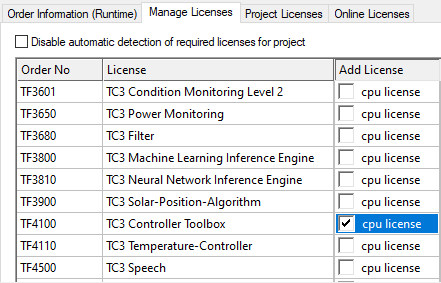
- 6. Open the Order Information (Runtime) tab.
- In the tabular overview of licenses, the previously selected license is displayed with the status “missing”.
- 7. Click 7-Day Trial License... to activate the 7-day trial license.
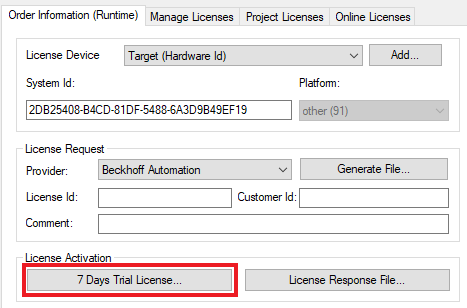
- A dialog box opens, prompting you to enter the security code displayed in the dialog.
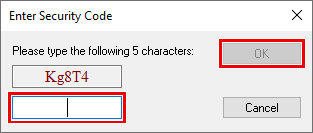
- 8. Enter the code exactly as it is displayed and confirm the entry.
- 9. Confirm the subsequent dialog, which indicates the successful activation.
- In the tabular overview of licenses, the license status now indicates the expiry date of the license.
- 10. Restart the TwinCAT system.
- The 7-day trial version is enabled.
Licensing the full version of a TwinCAT 3 Function
A description of the procedure to license a full version can be found in the Beckhoff Information System in the documentation "TwinCAT 3 Licensing".