User interface and operating concept
This chapter explains the general set-up of the user interface to help you understand the overall operating concept.
In general, the operating concept is similar to that of other TwinCAT components. Essentially, the TwinCAT Shell is based on Visual Studio, which is why its user interface resembles that of Visual Studio and shares many of its functions. The user interface may vary slightly after updates.
Language settings
The specific MTP Engineering functions are currently available only in English. If you change the language in the TwinCAT Shell, these terms will remain in English.
Main window layout
The following screenshot shows an MTP module from an MTP project that is already open.
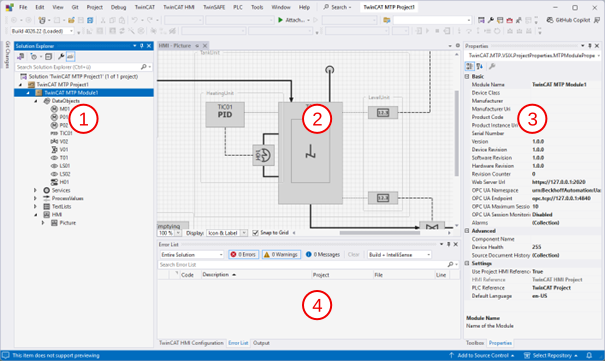
- Solution Explorer
- Designer for editing HMI screens
- Properties window
- Error List or Output window
These are the four most important areas of MTP Engineering. The following section provides a more detailed look at the functions and capabilities of these components.
Solution Explorer
In Solution Explorer, you can select, edit, rename, delete, and create items.
Below each MTP module, there are five aspects that are always present and cannot be deleted or renamed:
DataObjects: List of specific MTP data objects such as the analog driveAnaDrv. An FB instance is later created in the PLC for each of these elements.Services: List of services with their associated procedures, parameters, and report values. FB instances are later created in the PLC for the services and their components.ProcessValues: List of cross-module incoming and outgoing process values. An FB instance is later created in the PLC for each of these elements.TextLists: List of project-related and service-related enumerations.These elements are later transferred as objects to the HMI and as enumerations to the PLC.HMI: List of HMI pictures that can later be converted into TwinCAT HMI pages (.content).
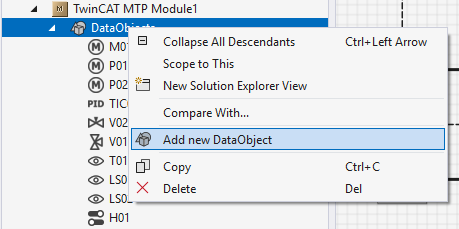
For each of these aspects, you can create as many elements as you like:
- Open the context menu on the respective node.
- Select
Add new ….
Properties window
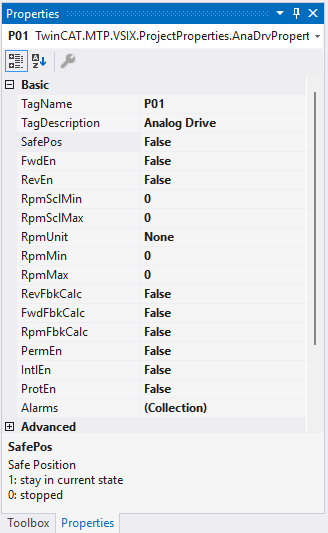
When elements are selected in Solution Explorer or in the Designer, their properties are displayed in the Properties window.
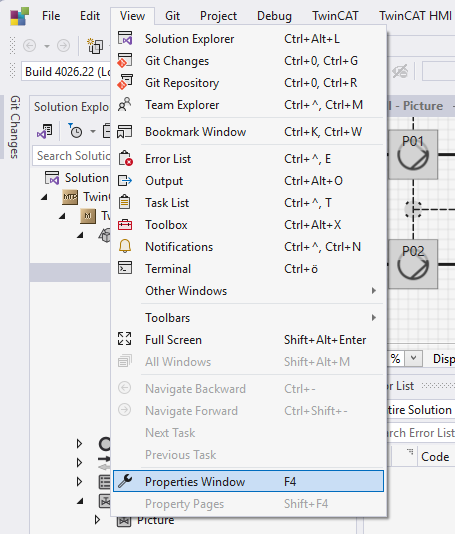
You can open the Properties window under the View tab:
A description of the properties is provided at the bottom of the Properties window.
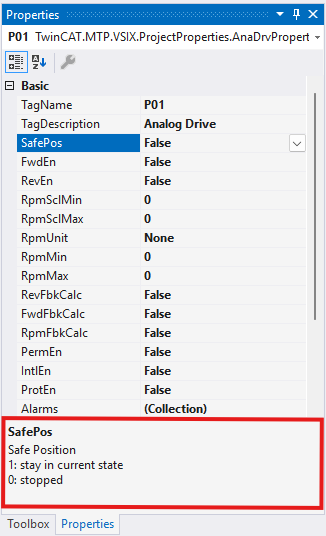
You can enlarge this area with the mouse as needed if the text is cut off.
The name of the property is based on the name used in the MTP specification. The description is also based on the one in the specification.
There are several ways to enter values for properties:
Direct entry: Simple properties can be edited directly in the cell
Expandable menu: For complex properties, you have an expandable menu with predefined values to choose from. For example, when making a choice of units:
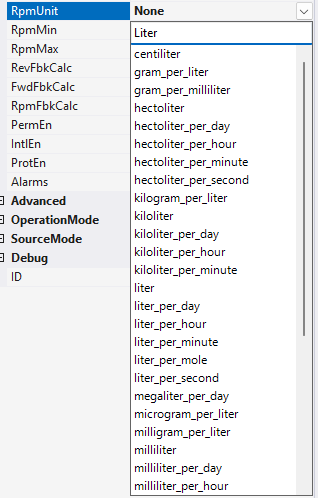
The top line of the expandable menu is a search box that you can use to search the list.
Dialog input: Some complex properties have their own dialog for editing.
- 1. Open the dialog box by clicking the … button.
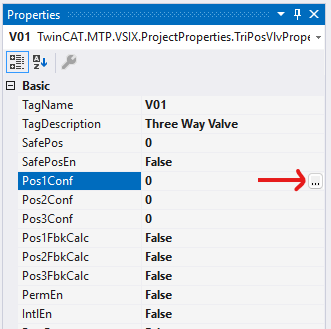
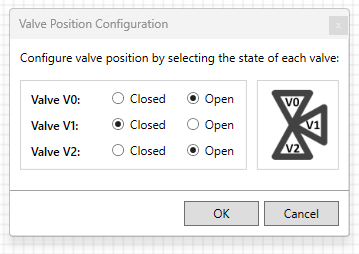
- The following dialog will open for
TriPosVlv:
Warnings and error messages
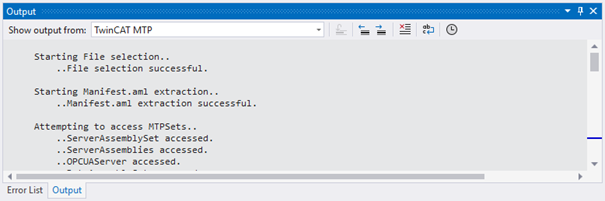
The information displayed in the output window for MTP Engineering is generally relevant only for diagnostic, debugging, and support purposes. During the import, for example, individual steps are logged there:
The Error List is more relevant for everyday use. This section primarily lists errors or warnings that occur during MTP imports and MTP exports:
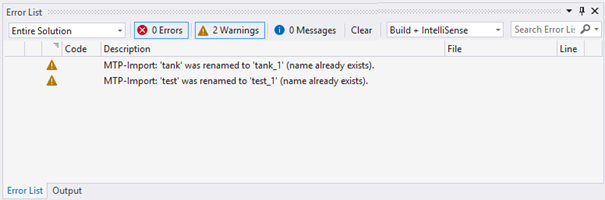
Errors and warnings can be cleared using the Delete button at the top of the toolbar or the Delete option in the context menu. Otherwise, the messages remain in the list until a new import or export is performed.
Double-clicking on the warning or error caused by the import or export selects the corresponding item.
All other errors in MTP Engineering are caught immediately upon entry or have their own log dialog, and therefore do not appear separately in the error list.