Workflows for license administrators
License administration
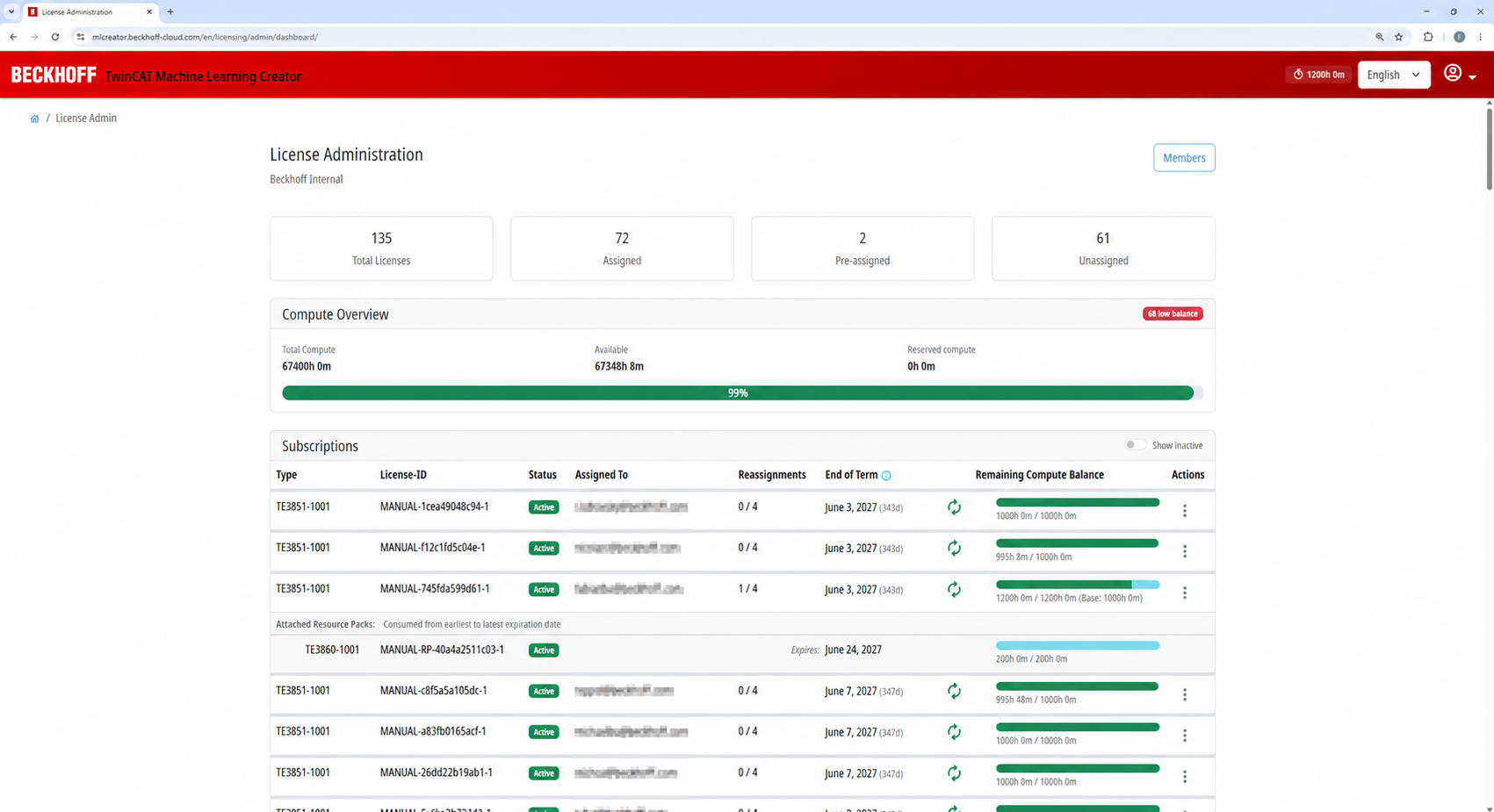
The License Administrator Panel is used for the centralized management of all MLC licenses and resources assigned to the enterprise. Access is restricted to users with the "License Administrator" role.
Members
Users can be assigned to the respective enterprise using the Members button. Only members can be designated as license administrators or users.
Overview
The top section displays aggregated metrics on license distribution:
- Total Licenses: Total number of available licenses
- Assigned: Number of currently assigned licenses
- Pre-assigned: Number of licenses already assigned (member has not yet confirmed)
- Unassigned: Number of unassigned licenses
These figures provide a quick overview of the current license distribution.
Compute Overview
The "Compute Overview" section displays the available computing resources:
- Total Compute: Total compute quota for all licenses and Resource Packs
- Available: Remaining compute quota
- Reserved compute: Resources that have already been reserved but not yet used
The progress bar displays the current utilization. If necessary, a note indicating a low remaining quota will be displayed directly in this area.
Subscriptions
The "Subscriptions" table represents all license assignments in detail:
- Type: License type (e.g., TE3851-1000)
- License ID: Unique license identifier
- State: Actual state (e.g., Active, Grace, Expired)
- Assigned To: Assigned User
- Reassignments: Number of remaining reassignments within the runtime
- End of Term: Expiration date of the current term
- Remaining Compute Balance: Remaining compute quota for the license
Actions
Depending on your license state, the following actions are available via the three-dot menu:
- Assign: Assign a license to a user
- Reassign: Transferring the license to another user
- Unassign: Remove the current assignment
- Attach Pack: Assign a Resource Pack to extend the compute quota
Attached Resource Packs
When a resource pack has been assigned to a license, it appears in the Attached Resource Packs section directly below the corresponding subscription. The following applies:
- The resource pack is tied to a specific license instance. It is not assigned to a specific user, but rather to the license.
- The assigned pack increases the license's available compute quota.
- The display shows the pack along with its license ID, state, and expiration date.
- The license's "Compute" display takes into account the additional quota from the pack.
Unattached Resource Packs
This section shows available resource packs that have not yet been assigned:
- Type: Resource pack type, e.g., TE3860-1001
- License ID: Unique identifier for the resource pack
- Compute: Included compute hours
- Expiry: Expiration date
- State: Actual state
- Compatible Licenses: The types of licenses with which the resource pack can be used
You can use the switch Show inactive to show or hide inactive resource packs. Resource packs are displayed in the "Attached Resource Packs" section only after they have been assigned to a compatible license.