Module Watcher
The “Module Watcher” window is used for direct visual control during the configuration process.
- Function: Displays the images currently used in the module in an enlarged view parallel to the network editor.
- Area of application: Quick checking of parameter settings and direct viewing of image data without interrupting the workflow.
 | This window is purely for display purposes; the images are not saved permanently. |
Open
There are two ways to call up the “Module Watcher” window:
- Via the main menu
Navigate in the Visual Studio menu bar to:
Visual Studio menu: TwinCAT > Analytics > Module Watcher - Via the network editor (context menu):
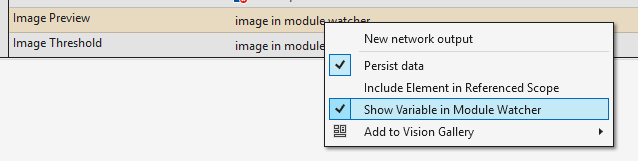
In the network editor, right-click on an In variable or Out variable. In the context menu that appears, select the Show Variable in Module Watcher command (see illustration below). The window then opens automatically and displays the corresponding variable.
Dynamic display and interaction
The Module Watcher is directly synchronized with the active network editor. The display is context-dependent: The window automatically visualizes the data of the module that you have currently chosen in the editor.
- Automated update: As soon as you click on another vision module in your analysis, the Module Watcher updates the view and displays the images processed in it.
- Workflow advantage: This direct coupling allows you to quickly switch between different modules and compare their image data without manually reloading.
- Visible values: The eyeglasses icon, which you will find with each module, also have an effect on the Module Watcher.
Navigation and detailed view
The user interface is structured hierarchically to ensure a clear representation.
Hierarchical tree view
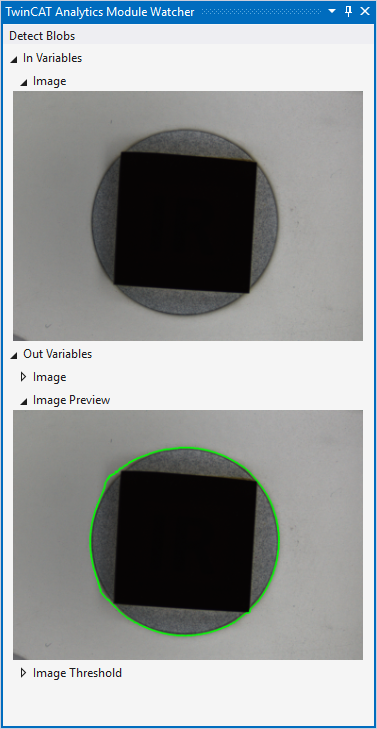
Below the module name, all available data is visualized in a tree structure.
- Structure: The display is divided into groups. The In variables are listed first, followed by the Out variables.
- Grouping: Within these categories you will find the individual variables that are assigned to the module.
Module Watcher - Complete function:
Focus mode (root navigation)
You can use the focus view to limit the display to relevant information:
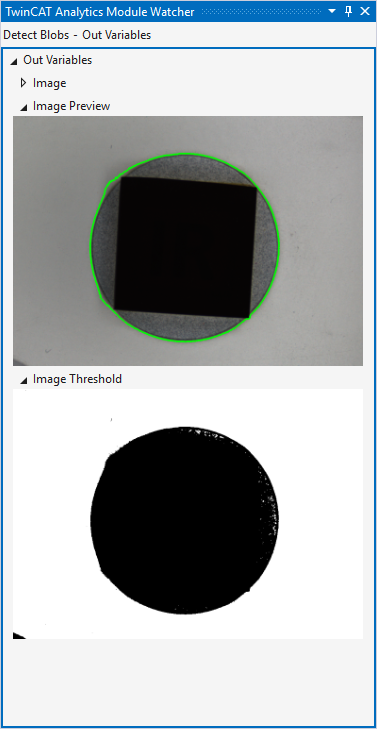
- Switch levels: Double-click on an item (e.g. the “Out Variables” group) to make it the new starting point (root node) of the view. All other items are hidden in order to make optimum use of the available space for the relevant images. Double-clicking an image produces the same result as selecting the “Open” option from the context menu.
- Breadcrumb navigation: As soon as you are at a lower level, a breadcrumb bar appears in the title bar. This shows your current path (e.g. module name > Out Variables). You can switch back to a higher hierarchical level by clicking on the entries.
Module Watcher - Out Variable Focus:
Example: Individual display of images
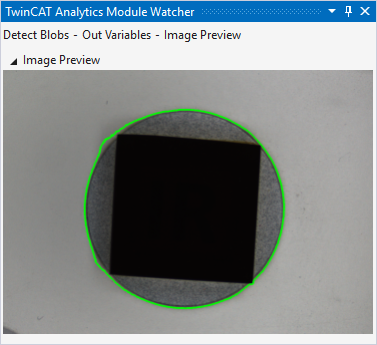
For example, if you double-click on a specific variable such as “Image Preview”, only this image will be displayed in large format. This is particularly helpful for analyzing the effects of parameter changes in detail without being distracted by other image data.
Module Watcher - Image Preview: