Quick start
To start, create or open a TwinCAT HMI project.
Installation
Install the NuGet package "Beckhoff.TwinCAT.HMI.Database" via the NuGet Package Manager.
Installation of a required database
Install at least one database required by the Database Extension.
- PostgreSQL
- MariaDB
Installation of the ODBC driver
Install the respective ODBC driver of the database used for the appropriate operating system and architecture on the engineering and target system
Configuring the Database Extension
- Open the configuration page of the TcHmiDatabase Extension.
- Add a new database connection.
- The connection is configured via the connection string:
Driver={PostgreSQL Unicode(x64)}; Server=localhost,Port=5432; Database=postgres; Uid=postgres; Pwd=@password;Check the connection via the Diagnostics tab.
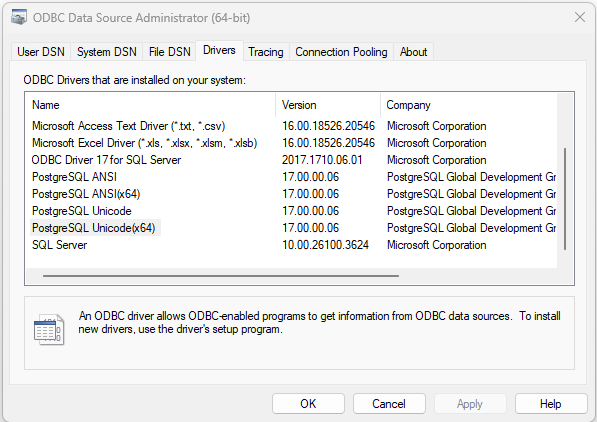
Driver | ODBC driver name Under Windows, all database drivers can be listed with the ODBC Data Source Administrator program.
|
Server | Host name or IP of the database system |
Port | TCP port of the database system |
Database | Database name |
Uid | Username |
Pwd | Password @password = Parameter for not displaying the password in plain text.
|
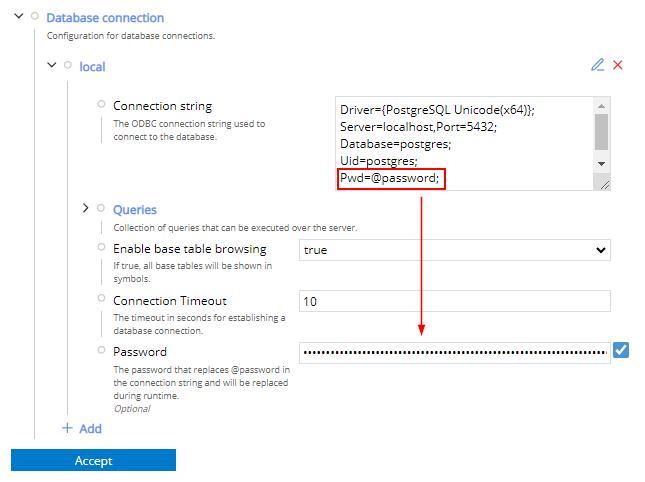
- 1. Activate "Enable base table browsing" so that all tables in the database are created as symbols.
- 2. Drop a Data Grid Control and configure the desired table as Src Data Attribute.
- 3. Under Src Column, enter the name of the individual columns in the control. These must reflect the column name from the database in order to create a link between the database column and the control column.
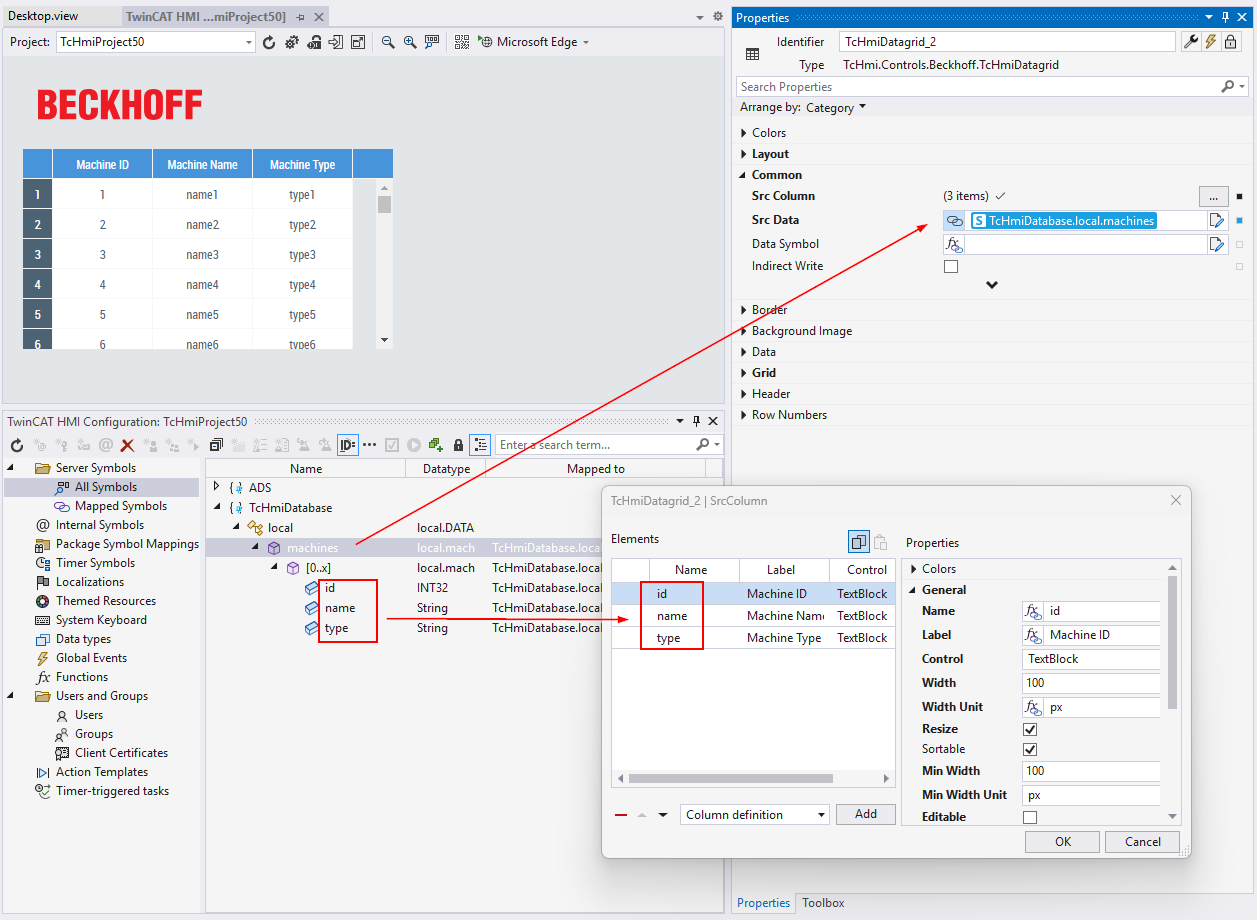
- There is read-only access to the database.
 | A separate query must be used for write access to the database. |