Create a new user
To start, create or open a TwinCAT HMI project.
Adding a new user in Visual Studio / TcXaeShell
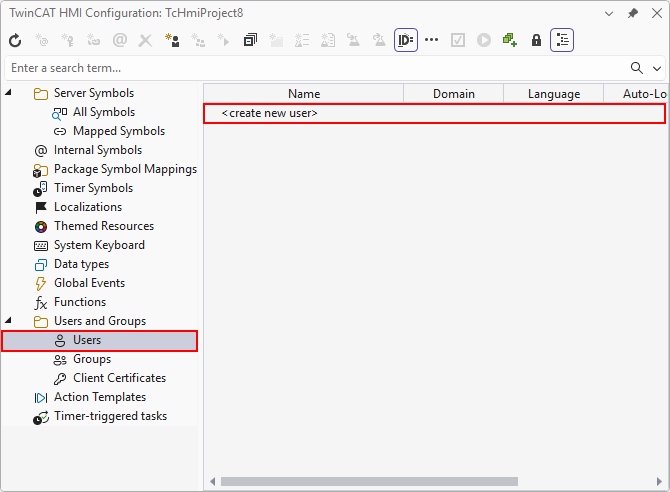
- 1. Open the TwinCAT HMI Configuration window.
- 2. Go to the Users tab in "Users and Groups"
- 3. Add a new user by double-clicking on <create new user>.
- A pop-up opens for further settings
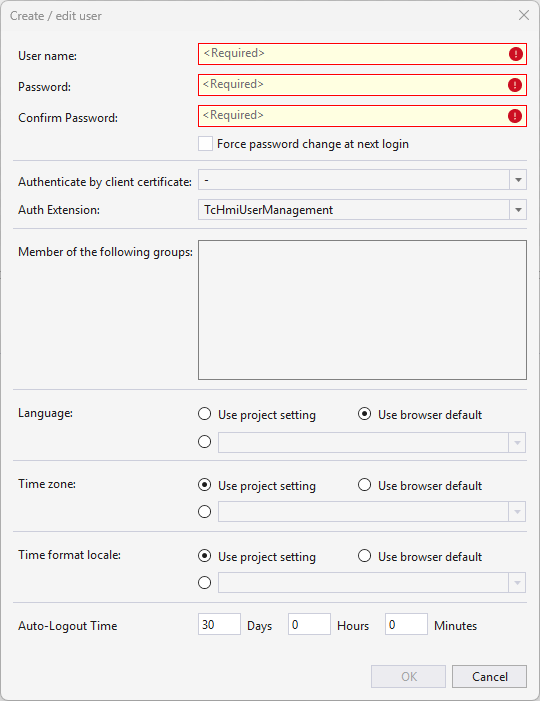
- 4. Define at:
User name: The name of the new user.
Password: The new password of the user.
Confirm Password: Verification of the entered password.
Force Password change at next login: Forces the user to set a new password at the next login.
Authenticate by client certificate: Defines a client certificate that authenticates in the corresponding user.
Auth Extension: Defines the extension in which the user is managed. "Default: TcHmiUserManagement"
Member of the following groups: Specifies which user groups have been assigned to the user.
Language: Specifies the default language for the user.
Time zone: Specifies the default time zone for the user.
Time format locale: Specifies the default value for the formatting of the time string.
Auto-Login Time: Specifies the time after which a user is automatically logged out.
- The new user has been successfully created.
Adding a new user via the server configuration page
- 1. Open the server configuration page.
- 2. Go to the TcHmiUserManagement
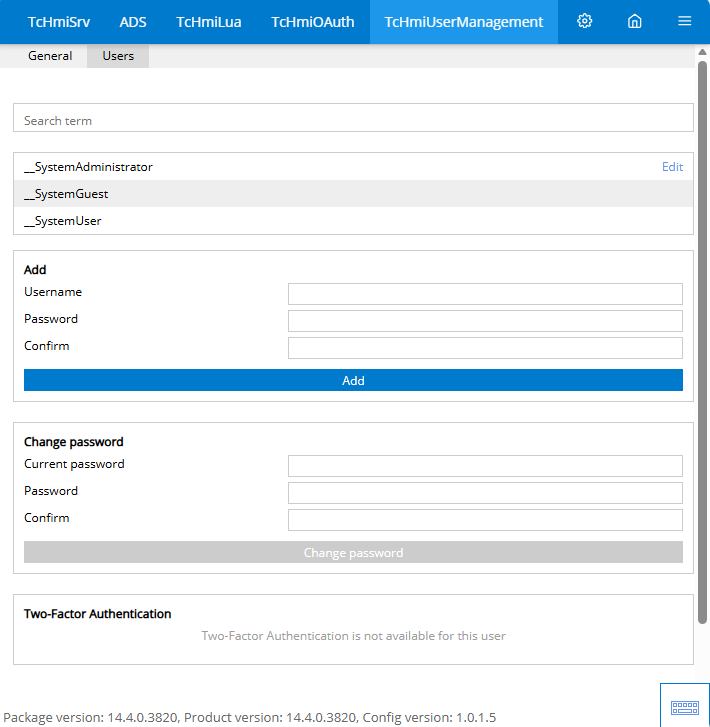 tab.
tab. - 3. Under the Add group, define:
User name: The name of the new user.
Password: The user's new password.
Confirm: Verification of the entered password.
- A new user with minimal settings has been created. Further settings must be made via Visual Studio / TcXaeShell or the UserManagement Control.