Quick start
To start, create or open a TwinCAT HMI project.
Installation
Install the NuGet package "Beckhoff.TwinCAT.HMI.OAuth" via the NuGet Package Manager.
Installation of a required user management server
Install a user management server required by OAuth.
Configuring the TwinCAT HMI server (example with Keycloak)
- 1. Open the configuration page of the server in the HMI project.
- 2. Go to the Security subtab.
- 3. Open the following URL in a web browser to have the most important information from Keycloak at a glance:
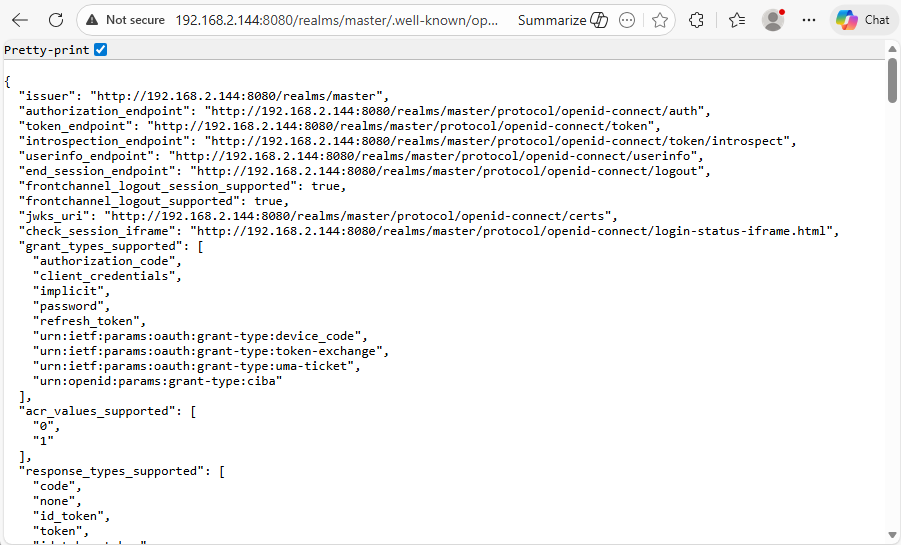
Examples for the placeholders:
<root> = 192.168.2.144:8080
{realm-name} = master
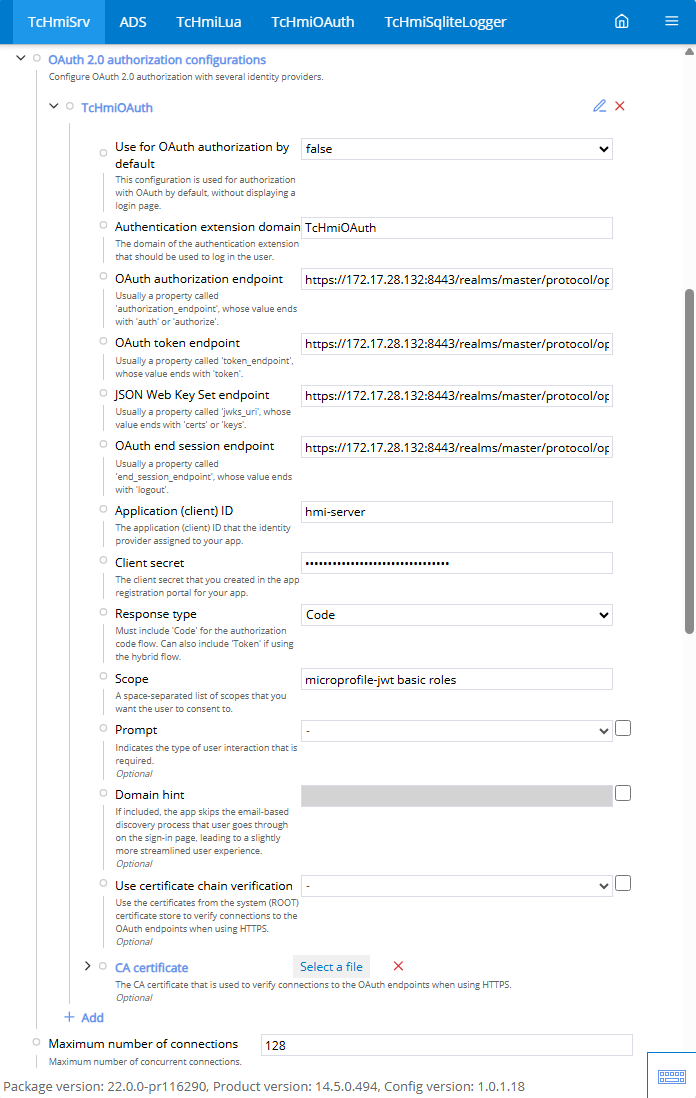
http://<root>/realms/{realm-name}/.well-known/openid-configuration- 4. Set the connection to the user management server here.
Use by default for OAuth authorization: false.
Authentication extension domain: TcHmiOAuth.
OAuth authorization endpoint: value of "authorization_endpoint".
OAuth token endpoint: value of "token_endpoint".
JSON web key set endpoint: value of "jwks_url".
OAuth endpoint for ending the session: Value of "end_session_endpoint".
Application or client ID: Enter the client ID you have defined.
Secret client key: Enter the "Client Secret" of your client (Clients/<clientName>/Credentials)
Response type: Code
Application area: microprofile-jwt basic roles
- The connection to a user management server via OAuth has been successfully established.
Configuring the OAuth extension
- 1. Open the OAuth configuration page in the HMI project.
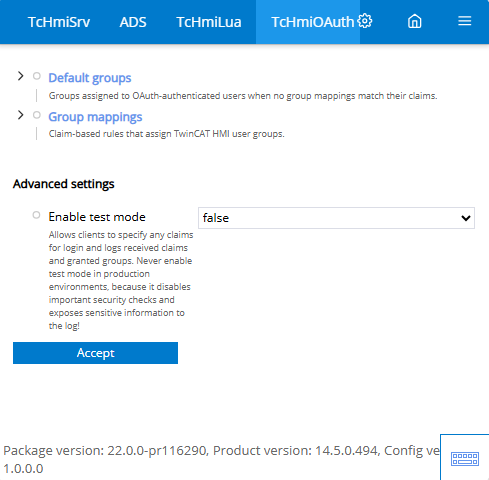
- 2. Under Default groups, specify which user groups are assigned to the OAuth users by default. This group is added if none of the rules under Group assignment match the user.
- 3. Under Group assignment, specify which user groups should be assigned to the OAuth users under certain conditions.
- You have successfully established a connection between the TwinCAT HMI server and a user management server.