User-defined column
The AuditTrailGrid offers the option of displaying user-defined columns in the table. New columns can be added in the settings window of the control under Common/Columns. The dropdown includes a preselection of data from the database. To display data that is not included in the selection, the corresponding key or path must be selected in the database.
Data keys in the AuditTrail database:
Keys | Description |
|---|---|
id | Returns a unique entry number. |
timestamp | Returns the timestamp of the write command. |
processed_start | Returns the timestamp from the server indicating when the interaction started. |
processed_end | Returns the timestamp from the server indicating when the interaction ended. |
symbol_or_event_name | Specifies the name of the symbol or event filter for which the entry was created. |
audittype | Indicates the type of entry. 0=Symbol, 1=Function, 2=Event, 3=AuditLogEntry |
oldvalue | Specifies the value that is overwritten. If re-authentication is incorrect, this value is zero. |
newvalue | Specifies the value to be written to the symbol. |
readvalue | Specifies the value that was read back after the successful write attempt. |
username | Specifies the user who was logged in for the write operation. |
sessionid | Specifies the session ID from which the write command originated. |
error | Indicates whether an error occurred during the write process. |
context_domain | Indicates the domain from which the entry was created. |
comment | Specifies the comment entered by the user. |
symbol_version | Indicates the version in which the symbol was present when the write command was issued. |
reauthentication | Indicates whether and who carried out the re-authentication. |
customer_data | Specifies additional information that can be defined individually for each symbol in the AuditTrail configuration. |
symbol_mapping | Specifies additional information that is read from the symbol mapping. These must be specified individually for each symbol. |
Read the database.
- 1. Open the database using PostgreSQL CLI or pgAdmin.
- 2. Enter the query command to see all entries.
Match {table id} with the table id defined in the AuditTrail.
SELECT * FROM auditTrail_{table id} ORDER BY timestamp DESC- 3. Get the corresponding path from the database.
- Path to the alias of the symbol: "symbolMapping::OPTIONS::TCHMI::ALIAS". In order for the alias to be used, it must be defined for the corresponding symbols. In addition, "OPTIONS" must be entered in the AuditTrail under Mapping data. Only then will the options from the symbol be saved in the AuditTrail.
Entering the user-defined column
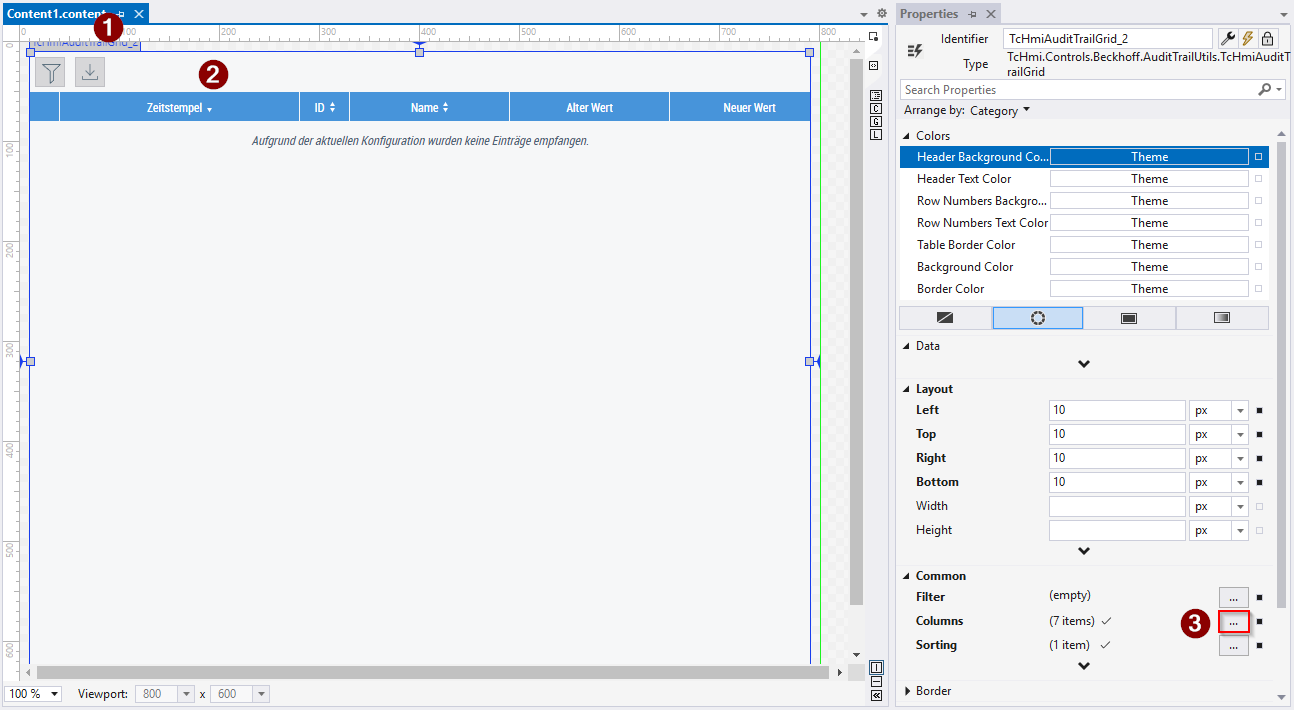
- 1. Open the page on which you have placed the AuditTrailGrid.
- 2. Select the control.
- 3. Click on the Columns settings in the Properties window.
- The properties window will open.
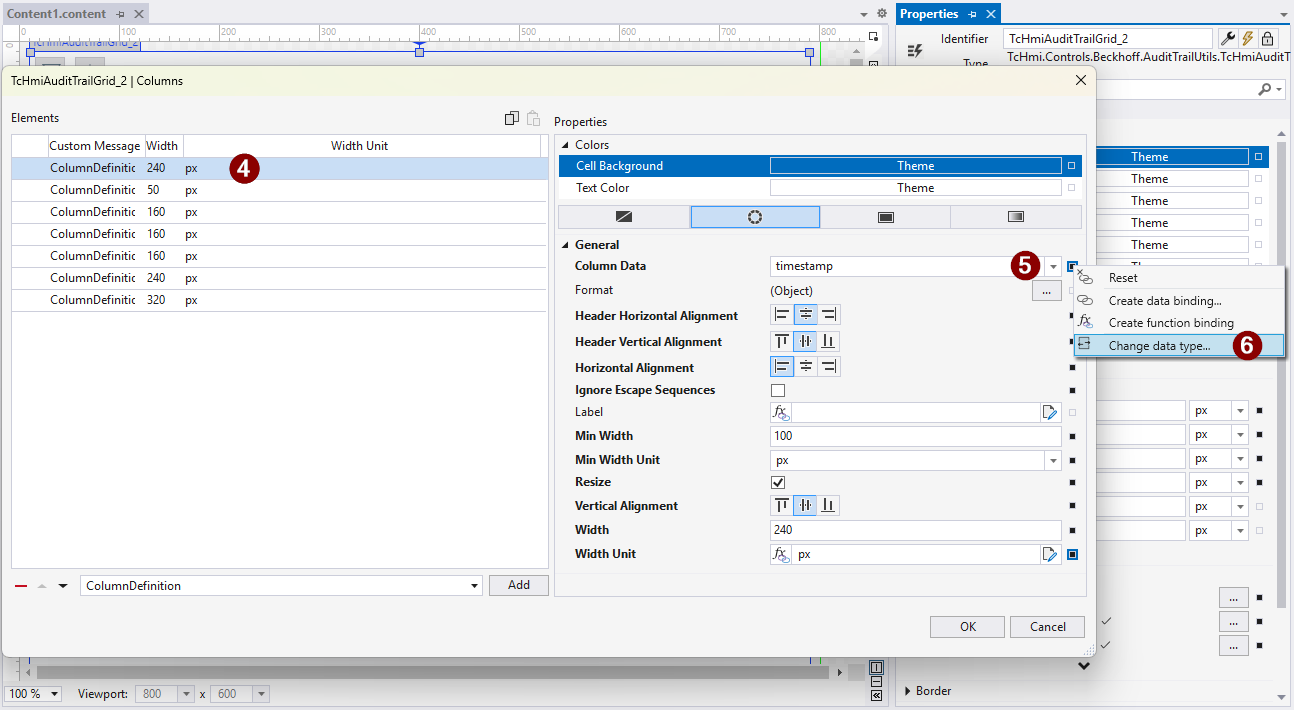
- 4. Select an element or add a new one.
- 5. Click on the small square to the right of Column Data.
- 6. Click on Change data type...
- A window opens with a choice of data types.
- 7. Choose Custom Column.
- Free text entries can now be made in the field.
- 8. Enter the corresponding path to read the data from the database.
symbolMapping::OPTIONS::TCHMI::ALIAS- 9. Fill in the remaining fields according to your wishes.
- 10. Confirm your changes with the OK button.
- The column is now displayed according to your configuration.