Tool approvals
Under Settings → Tool Approvals, you can specify which tools are allowed to run without explicit user confirmation. Approvals are organized into groups and can be configured separately for the current workspace and globally.
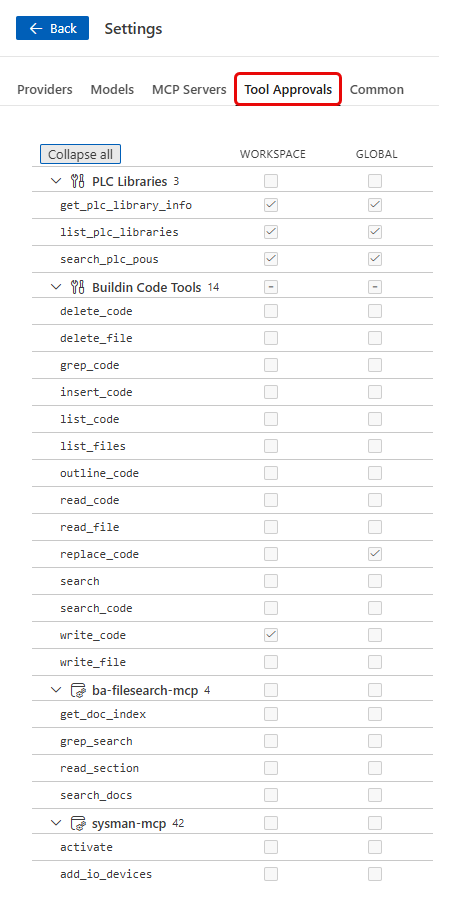
Column | Meaning |
|---|---|
Workspace | This approval applies only to the currently open TwinCAT workspace. |
Global | This approval applies to all workspaces on this system. |
The Classification column shows the origin of the tools (Built-in tools) or, in the case of MCP servers, whether the server’s read-only designation is applied (Read-only descriptions: Trusted or Off; see the chapter Custom MCP servers). The Approval column displays the effective approval status of a tool as an icon, such as default: Ask or Allowed globally.
Each group can be expanded or collapsed by clicking on the group name. Clicking Expand All expands all groups at once and displays the names of the tools they contain. Approvals can be set at the group level (all tools in the group) or at the individual tool level. A minus sign in a group’s checkbox means that only some of the tools in that group are approved.
If no effective approval is in place, a confirmation dialog appears in the chat before the action is executed:
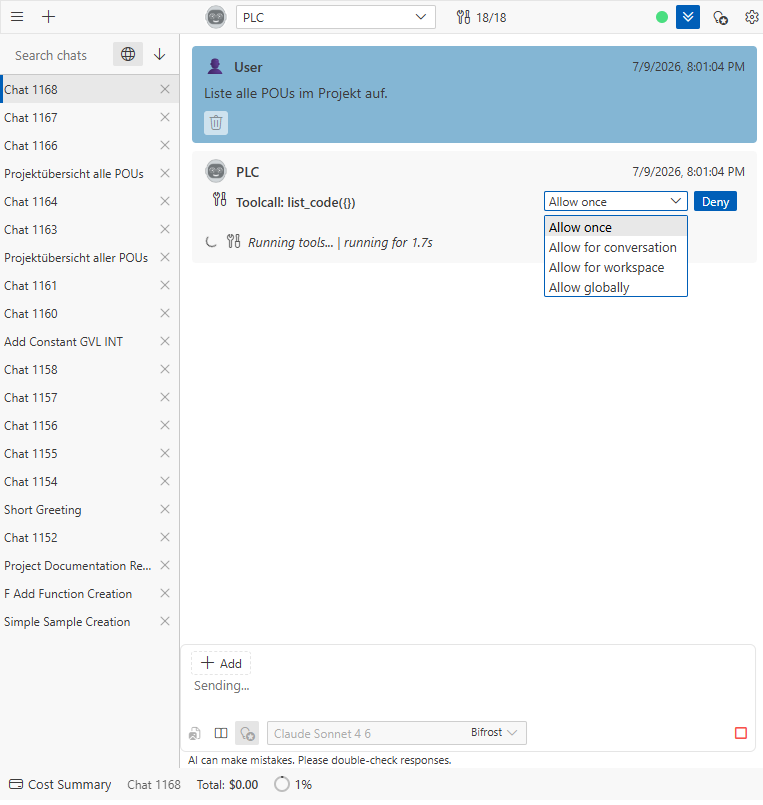
The dialog displays the tool name and a drop-down menu with the following options:
Option | Meaning |
|---|---|
Allow once | The tool is approved for this single call. The dialog appears again the next time the tool is called. |
Allow for conversation | The tool is approved for the remainder of the current conversation. |
Allow for workspace | The tool is permanently approved for the current TwinCAT workspace (corresponds to the workspace checkbox in Tool Approvals). |
Allow globally | The tool will be permanently approved on this system for all workspaces (corresponds to the “Global” checkbox in Tool Approvals). |
Select Deny to prevent the tool from running.
.
 | Approvals complement each other. For example, clearing a workspace checkbox does not revoke a global or conversation-specific tool approval. The automatic approval setting under Settings > Common > Miscellaneous also remains in effect. To start requesting confirmation again, remove the relevant permissions and, if necessary, disable Auto-approve read & search tools. |