Input area
The input area at the bottom of the main pane provides the following controls:

Icon | Item | Function |
|---|---|---|
| References (Add) | Opens a drop-down menu for adding references as additional context (e.g., PLC code snippets, workspace information, or other content provided by the MCP server). |
| Text input field | Free-text field for entering messages. Use `/use` or `@` to insert additional contextual information about the project. |
| Attach a file | Attaches a file to the message. |
| Prompt templates | Opens the library of prompt templates. |
| Reasoning effort | Controls the LLM’s thinking mode for the current query. Available levels: *Low*, *Medium*, *High*. A higher reasoning effort improves the quality of responses for complex tasks, but consumes more tokens. An active level is deactivated by clicking it again.
Controls the LLM’s thinking mode for the current query. Only the levels supported by the selected model are offered (e.g., Low, Medium, High). If the model supports disabling the reasoning step, Off is also available. Each model has its own default level. A higher reasoning effort improves the quality of responses for complex tasks, but consumes more tokens. |
| Model selection | The selection of the LLM model to use is made from a drop-down menu. See the figure below. |
| Send | Sends the message to the active agent. |




The Model drop-down menu displays the models offered by the configured providers along with their provider assignments:
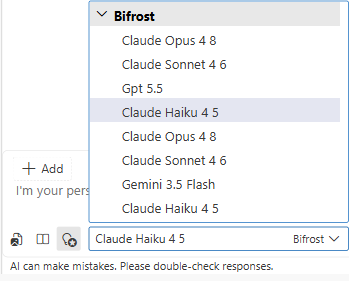
At the bottom of the input area, the note *“AI can make mistakes. Please double-check responses.”* is displayed.
While replying, the Send button is replaced by Stop generation. This will cancel the current generation process. Changes that have already been made are not reverted.
Adding references
Clicking Add opens a drop-down menu listing the available context sources. The available sources depend on the active MCP servers and the open TwinCAT project:

By adding a reference, you include the relevant context of the message without having to insert the text manually.
Example: Select Add -> PLC Code -> FB_MyController to attach the source code for the FB_MyController function block to the request. The agent can analyze the code directly and address it in their response – for example, to explain an error or suggest an enhancement.
Alternatively, enter @ followed by part of the name and select the desired entry. Depending on the available sources, solution files and documentation content can also be selected. Added references appear in the input field and can be removed before submitting.