Quick start
Creating a TcCOM module from an FMU
- 1. Open the full version of a Visual Studio with integrated TwinCAT.
- 2. Select the option TwinCAT FMI in the menu Extensions -> TwinCAT.
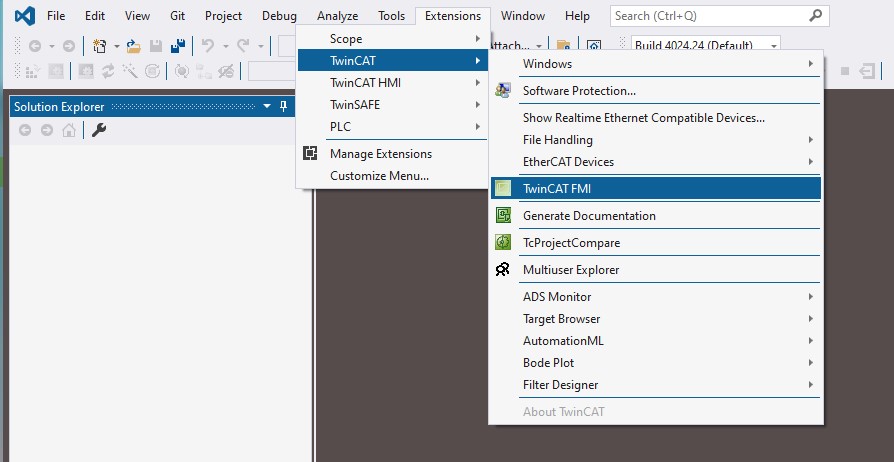
- The FMI Interface Tool window opens.
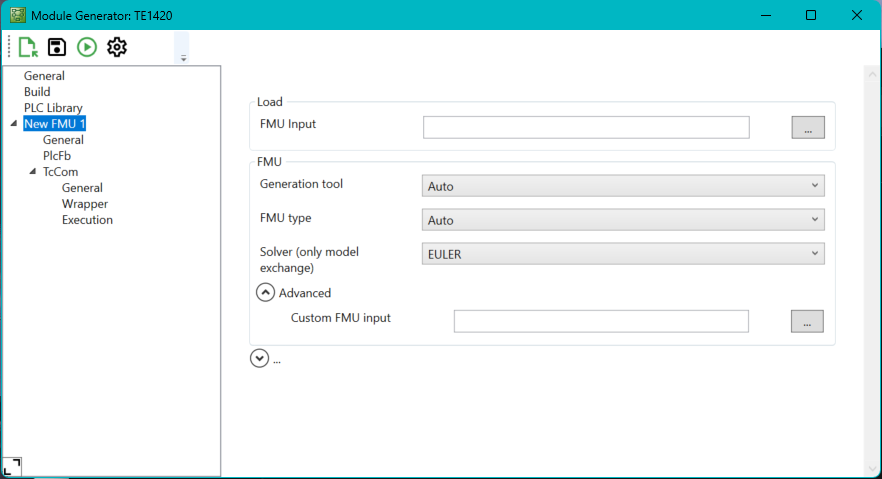
- 3. Use the button … under FMU Input to navigate to the FMU that is to be converted into a TcCOM module. If the view does not open as shown in the previous figure, first select the "New FMU 1" node in the tree view.
- 4. In the drop-down menu Generation tool select the tool from which the FMU was exported.
Since version 2.7.2 of the TE1420, the generation tool is automatically read from the FMU. FMU type is then set to Auto. - 5. In the Solver drop-down menu, select the solver to be used for the FMU simulation model calculations.
If the model was exported as a co-simulation, then the solver is already part of the FMU. In this case, use COSIMULATION here. - 6. Use the button Start to start the generation of the TcCOM model.
- If the generation is successful, the output window of the TE1420 displays the message "Publish procedure completed successfully..."
Background to the selection of a Generation Tool
Since the export of the source code of a simulation model is handled differently by the various tools, different settings are required in the Visual Studio C++ project, which is automatically generated and used during conversion, depending on the tool. For tools already supported by TE1420, the configuration of these settings is done automatically with the selection of the Generation tool. Further tools can also be connected by yourself (see chapter Integration of additional tools).
Integrating the TcCOM module in a TwinCAT project
- 1. Open TwinCAT (TwinCAT XAE or TwinCAT in a Visual Studio environment).
- 2. Instantiate a new TcCOM object.
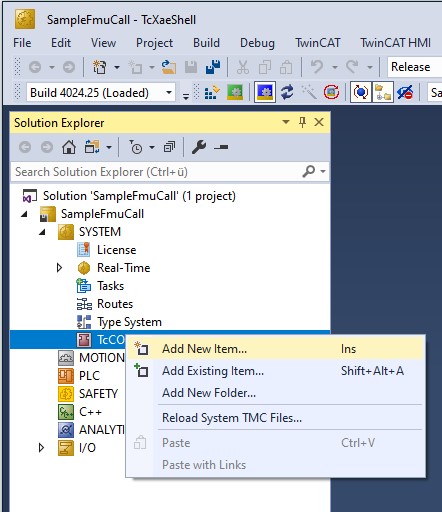
- 3. Select the desired object.

- 4. Create a cyclic task.
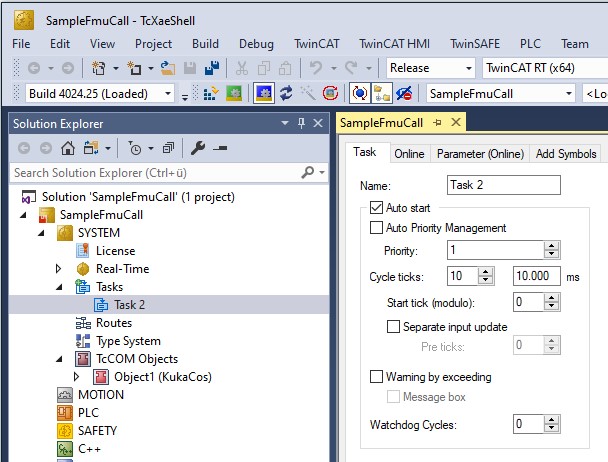
- 5. Assign the created task to your TcCOM instance.
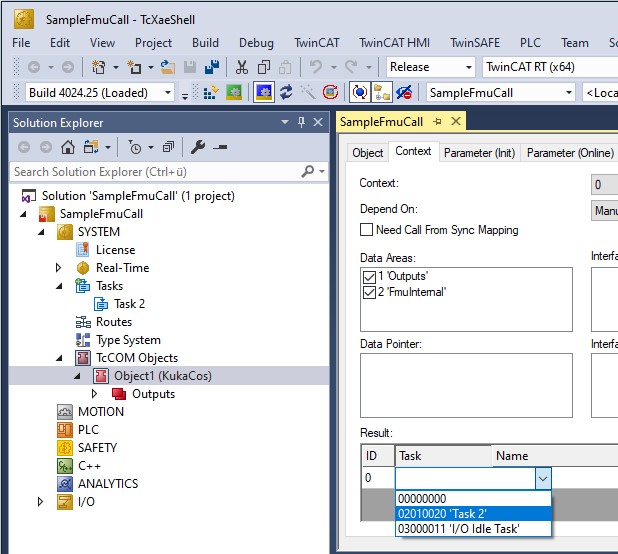
- 6. Link the inputs and outputs of the module as required.

- 7. Select the target system and activate the configuration.
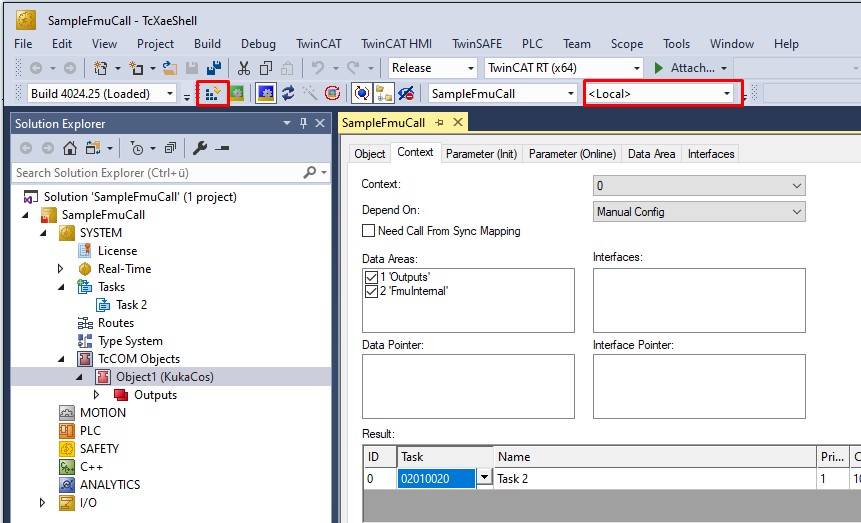
- The TcCOM module has now been integrated into your TwinCAT project.
 | Use FMI Tool Standalone In addition to the version integrated in Visual Studio, the FMI Interface Tool can also be used in standalone mode. An installed Visual Studio is also required when using the standalone FMI Interface Tool.
|