Creating a module with OEM license query
Why couple an own license to a module?
If a TwinCAT object, in addition to the TwinCAT licenses, is also bound to an OEM license, a binding of this TwinCAT object to a hardware can thereby be realized, so that the application is protected against cloning. In addition, functionalities of an application can be licensed to end customers via this route.
For more information, see Software Protection / Own OEM Licenses.
Configuration in MATLAB®
Optionally, a generated TcCOM or a function block can be linked to an OEM license. This OEM license is checked when starting the object (in addition to the Beckhoff TF1400 runtime license, included in the TC1220 and TC1320) in TwinCAT 3. If no valid license is available, the module does not start up and an error message appears.
You can insert your OEM License Check by naming your OEM ID and your license ID or multiple license IDs to be queried. You can find your OEM ID in the Security Management Console (Extended Info activated). The license ID can be viewed by double-clicking on the corresponding license entry in TwinCAT under System > License. Both IDs are also included in the generated License Request File when a Request File is generated with your OEM license.
 | Available example in MATLAB® Run the following command in the MATLAB® command line to open the example: |
Example of an OEM license:
OEM ID = '{ABBAABBA-AFFE-AFFE-AFFE-ABBABBAABBAA}';
OEM license ID = '{11111111-0000-FEFE-CCCC-BBBBBBBBBBBB}'
Corresponding entry in the export configuration:
exportConfig.Project.OemId = '{ABBAABBA-AFFE-AFFE-AFFE-ABBABBAABBAA}';
exportConfig.Project.OemLicenses = '{11111111-0000-FEFE-CCCC-BBBBBBBBBBBB}';
In addition to configuration via the project parameters, each converted MATLAB® function can be configured individually using the class parameters. By default, the entries are taken from the project parameters. However, this may be overwritten:
exportConfig.ClassExportCfg{1}.TcCom.OemLicenses = '{22222222-0000-EFEF-DDDD-CCCCCCCCCCCC}'If the module is created with the above settings and instantiated in TwinCAT, a valid OEM license must be present in addition to a valid TwinCAT license (TC1220 or TC1320) so that TwinCAT can be activated.
To note for license dongles
The following should be noted when using the OEM license for the target system on a dongle:
- Do you use an instance of a TcCOM?
- 1. Set the Init Sequence on the object instance to P.
- 2. Note that you cannot use active mappings in this case. It is advised to use the TcCOM wrapper FB or to call the module from TwinCAT C++.
- 3. Activate the configuration.
- 4. After TwinCAT is in run mode, switch the TcCOM object to OP state, e.g. via the XAE (see graphic below), via the TcCOM wrapper FB or via ADS.
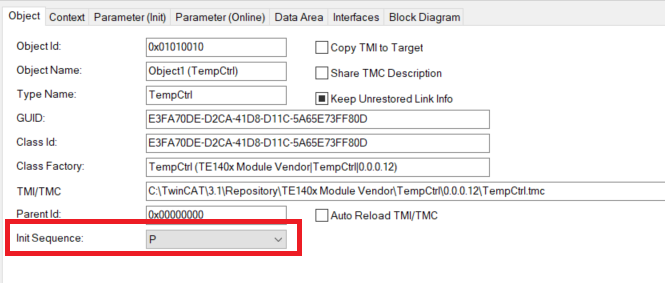
- The license will be checked and accepted (if valid) when booting into the OP-State.
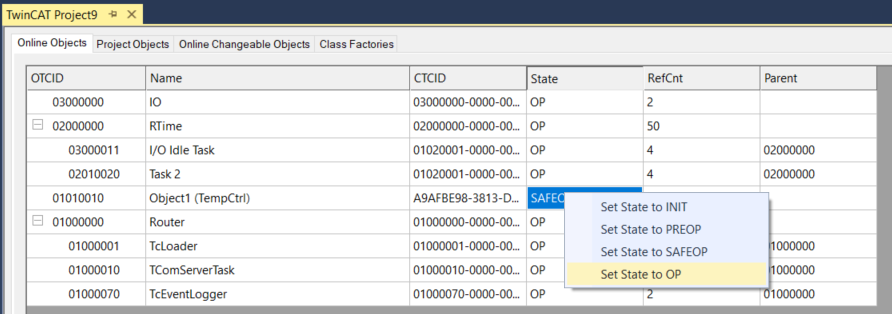
- Do you use the TcCOM wrapper FB from the created PLC library and reference a static TcCOM instance?
- 1. Set the Init Sequence on the object instance to P (see above).
- 2. Use the TcCOM wrapper FB to switch the referenced TcCOM to OP.
- The license will be checked and accepted (if valid) when booting into the OP-State.
- When do you not need to pay attention to anything else?
- 1. If you use the PLC-FB from the created PLC library.
- 2. If you create a TcCOM dynamically with the TcCOM wrapper FB.