TwinCAT Event
The TwinCAT Event block generates a TwinCAT event when a rising edge is detected at the block input. The block only fulfills this function if the Simulink® model has already been transferred to a TcCOM module and is executed in a TwinCAT runtime. If the Simulink® model is executed in Simulink®, this block has no function. Here you will find more information about events in TwinCAT 3.
A quick overview of the most important aspects of events in TwinCAT 3:
- In TwinCAT, there are two types of events: messages and alarms.
- Messages are stateless, while alarms have the following states: “Not Raised”, “Raised”, “WaitingForConfirmation” (optional), and “Confirmed” / “Reset” (optional).
- Events are defined in a TMC file.
An event (message or alarm) is triggered by a rising edge at the corresponding input of the TwinCAT Event block in Simulink®. In the case of messages, the block has a Send input. In the event of an alarm, the block has the following inputs: Raise, Confirm (optional), and Clear.
To use the TwinCAT Event block, you need a TMC file in which the events are defined. The process for creating such a file is described below.
The TwinCAT Event block can be configured using this window:
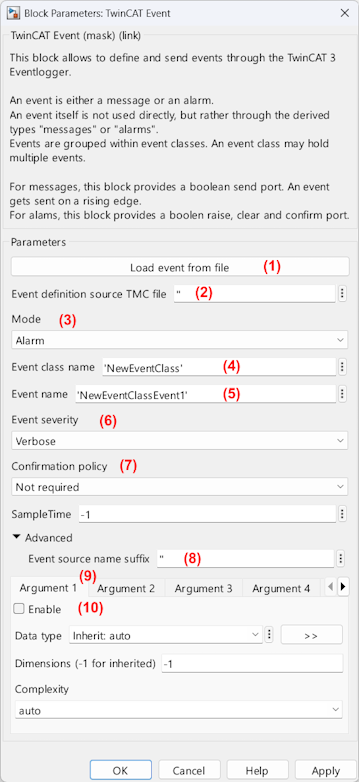
The individual options do the following:
Number | Name | Description |
|---|---|---|
(1) | Load event from file | Button that opens a new window which provides a selection menu for an event from a source TMC file (refer to 2). |
(2) | Event definition source TMC file | Path to the TMC file that holds the underlying event definition. Is automatically set when using (1). Can also be set manually e.g. relative to the Simulink® project directory: |
(3) | Mode | Switch between |
(4) | Event class name | Name of the selected event class. Is automatically set when using (1). Can also be set manually. |
(5) | Event name | Name of the selected event. Is automatically set when using (1). Can also be set manually. |
(6) | Event severity | Severity level of the event to be generated. Options: |
(7) | Confirmation policy | Only available for alarms (refer to (3)) Defines how the confirmation state of an alarm changes at a rising edge of the
|
(8) | Event source name suffix | Advanced Parameter: adds a suffix to the automatically resolved source name (name of the object instance in TwinCAT). Useful when one event is triggered from multiple points in one Simulink® model. |
(9) | Arguments | Events can have additional (dynamic) data in the event text in the form of arguments. Up to 9 arguments are supported. |
(10) | Enable | Checkbox that enables the respective argument. A new input will be added to the block on the Simulink® block diagram. |
 | Function blocks are not supported by the “TwinCAT Event” block To generate code, the “Generate TwinCAT PLC Function Block” parameter under “TwinCAT PlcFb General”, the “TcCOM Wrapper FB” parameter under “TwinCAT TcCom Wrapper”, and the “Generate a PLC library” and “Install the generated PLC library” parameters under “TwinCAT PLC Library” must be disabled. |
The following section first describes how to save an event definition in a TMC file and then how to integrate this TMC file into the “TwinCAT Event” block in Simulink® to generate messages or alarms.
Requirements for using the TwinCAT Event block: Event definition in a TMC file
To use the TwinCAT Event block, you need a TMC file that defines the event class for the events to be generated. To create such a TMC file, proceed as follows in TwinCAT 3 Engineering:
- TwinCAT 3 Engineering is installed (XAE Shell or Visual Studio integration) and open.
- A TwinCAT XAE project is open.
- 1. Expand the System node and add a new TMC file under “Type System” by right-clicking and selecting “Add New Item…”.
- 2. Name the file and save it (for this example, we will use “TE1400SampleEvents.tmc”).
- 3. Open the TMC editor by right-clicking the TMC file you created in TwinCAT 3 Engineering and selecting “Edit Project File”.
- 4. In the TMC editor, create a new “event class” by right-clicking the “Data Types” node.
- 5. Give the event class a name and enter a display text.
- 6. An event is already created below the event class. Give the event a name and enter a display text and the severity. In the display text, you can also include arguments that you populate with values at runtime, thereby providing helpful additional information (such as a temperature). (For example, “Current temperature: {0}”).
- 7. Now save the event class and close the TMC editor.
- 8. Now select the following checkbox in the “Event Classes” tab of the generated “TE1400SampleEvents” TMC file (this checkbox ensures that the reference count is incremented and that the event information is actually saved in the TMC file).
- 9. Then save the TwinCAT project using “Save All” (Ctrl + Shift + S).
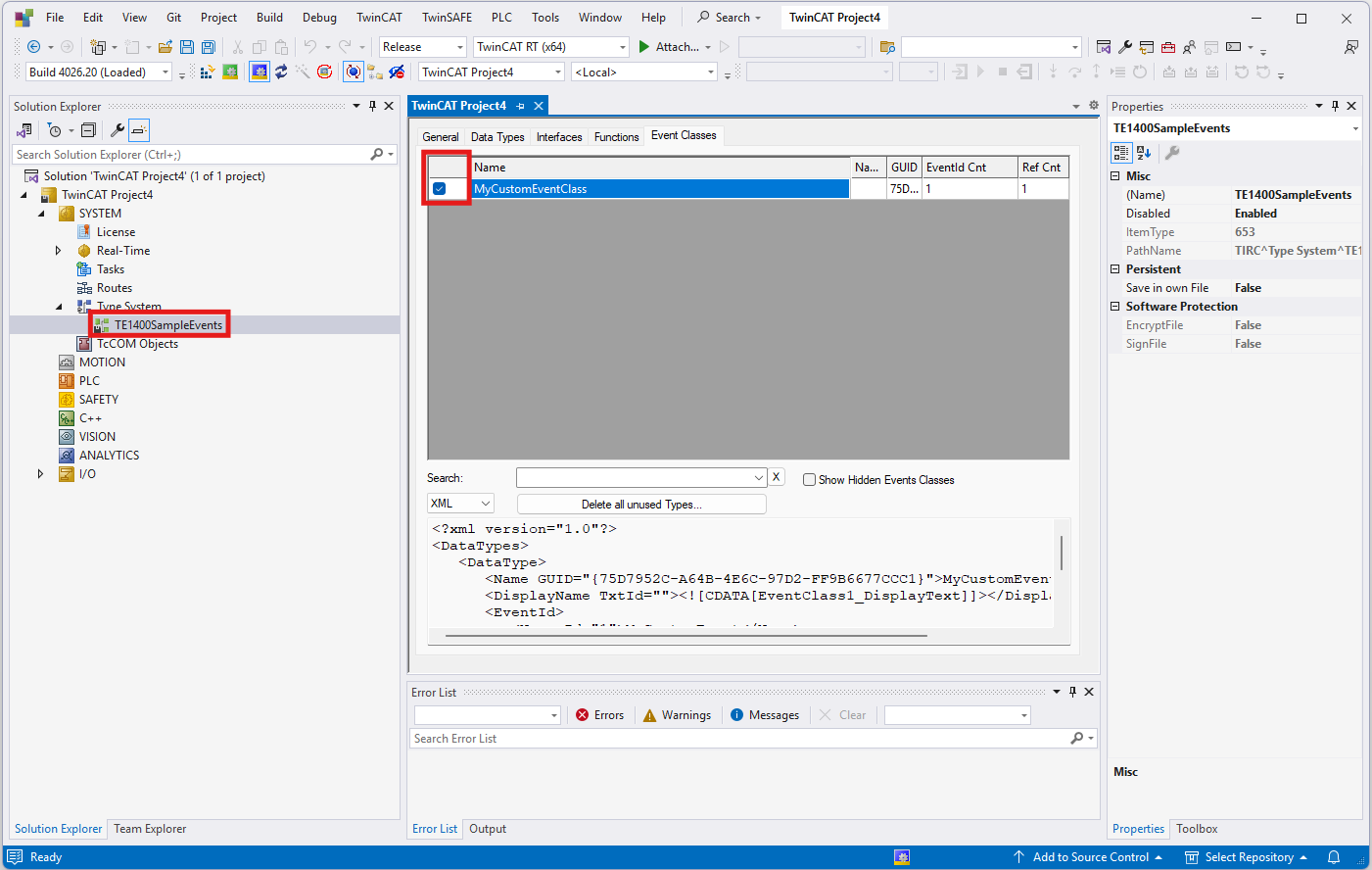
- The event definition is stored in a TMC file and can now be used by the TwinCAT Event block in Simulink®.
Configuring the TwinCAT Event block in Simulink®
The behavior of the TwinCAT Event block can be configured using the window shown above, which opens when you double-click the block. Proceed as follows:
- You have an event definition stored in a TMC file (see above).
- The TwinCAT Event block configuration UI is opened by double-clicking.
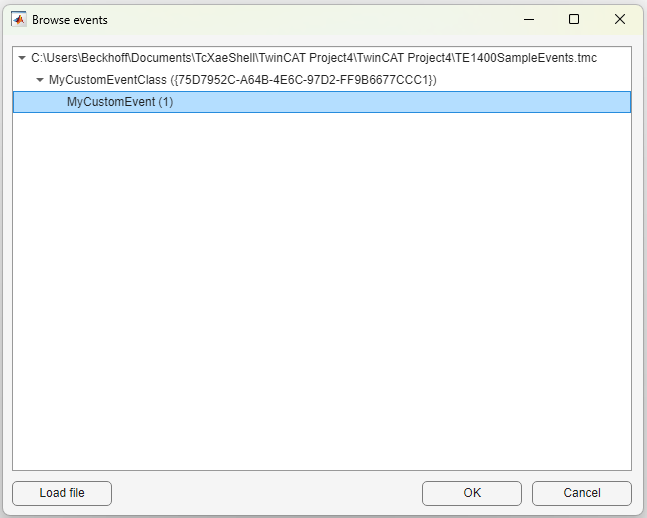
- 1. Clicking the “Load event from file” (1) button opens a “Browse events” window, which makes it easier to select the event to be created (to import a TMC file, click the “Load file” button and select the file).
- 2. Now select the event you want to create (in our example, “MyCustomEvent”) and click “OK” to confirm.
- The “Event class name” (4) and the “Event name” (5) are automatically set for you in the background.
- 3. Now use the “Mode” (3) to select whether to generate a message or an alarm (in this example, we are generating a message; alarms can be generated in the same way as messages and differ only in that they have two additional trigger inputs, as well as the
Confirmation state). - 4. Now select the event severity (6).
- 5. (In this example, no arguments are used. If you want to use arguments, you can create them in the UI under the corresponding argument tabs (9). A separate input is generated for each argument. Currently, up to 9 arguments can be created. Please note that when creating entries in the TMC editor, the use of arguments must be specified via the Event Display Text; for example: “Current temperature: {0}”)
- 6. Complete the configuration by clicking “OK”.
- Please note that function blocks are not supported, and configure the code generation in Simulink® accordingly.
| When generating the TcCOM modules, the event information is copied from the TMC file If the event information in the TMC file is subsequently changed, the Simulink® model must be rebuilt to apply the changes. |