Snapshots
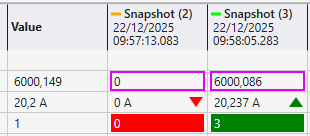
A Snapshot in the Table Chart is a powerful feature for capturing the state of all channels at a specific moment in time. This allows for comparison of live values side-by-side with values from the past (the snapshot). For visually highlighting differences between the snapshot and the live value, multiple settings are available: Border, Arrow & Background (LINK TO CHANNEL SETTINGS)
Creating Snapshots
Creation of a snapshot is triggered manually through the toolbar button. It freezes all current values of all channels inside the table. A new column gets added representing that timestamp and all its values. Snapshots are saved as .tac (TwinCAT Analytics Container) files on your hard drive and can be loaded in other projects as well.
Loading Snapshots
Snapshots can be loaded into any Table Chart Project via the Load Snapshot Context Menu or with simple drag & drop from your filesystem. This will create a new column in the table again. A loaded snapshot behaves just like a newly created snapshot. When you load a saved snapshot, the chart may not contain channels for all saved acquisitions of the snapshot. The chart will add empty rows for those and only display their value for the snapshot. If channels exist for the acquisitions inside the snapshot they will be added to that row. If you add a live acquisition that matches one of the empty rows, the Table Chart can automatically "reconnect" the snapshot data to the live channel, aligning the historical snapshot value with the current live and will now behave like a regular live acquisition.