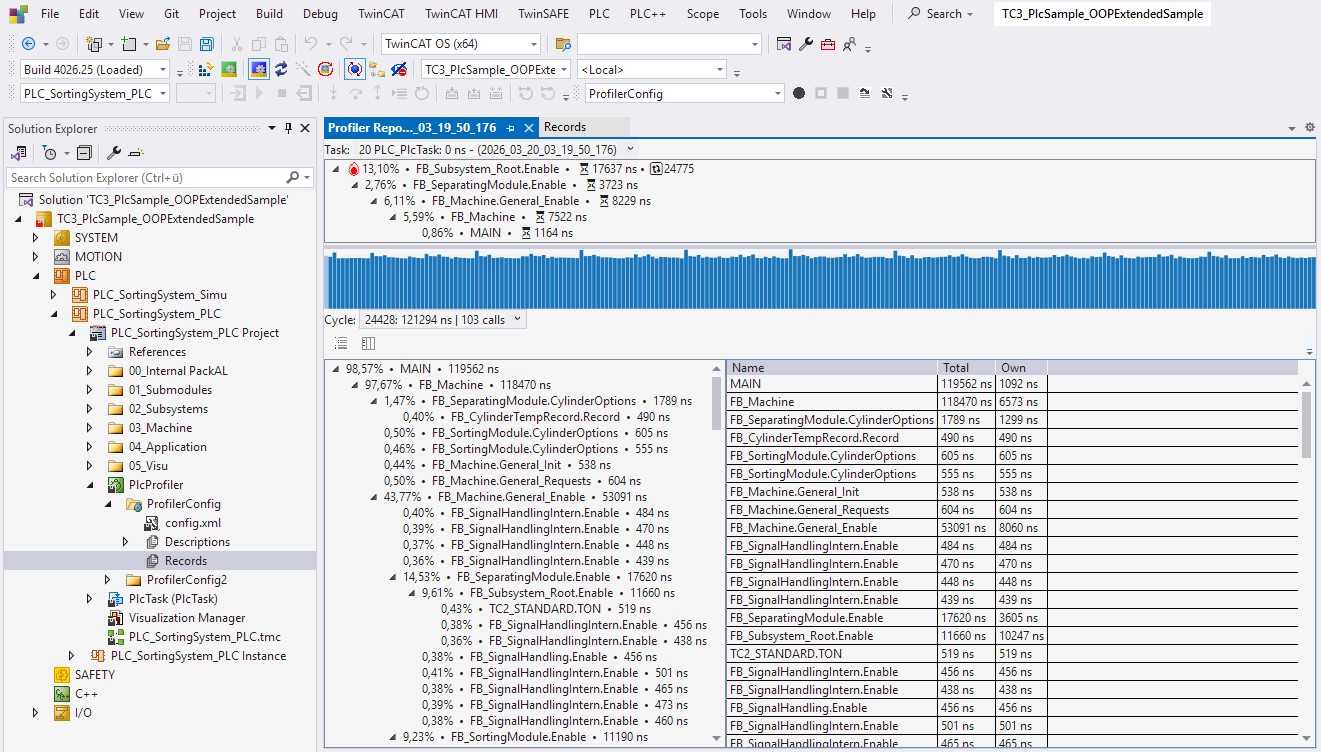
Quick start
The following chapter is intended to provide an easy introduction to using the TwinCAT 3 PLC Profiler.
- The starting point is a project running on a TwinCAT 3.1 runtime version 3.1.4026.0 or later.
- 1. Add the PLC Profiler to your PLC project via the context menu in the project tree.
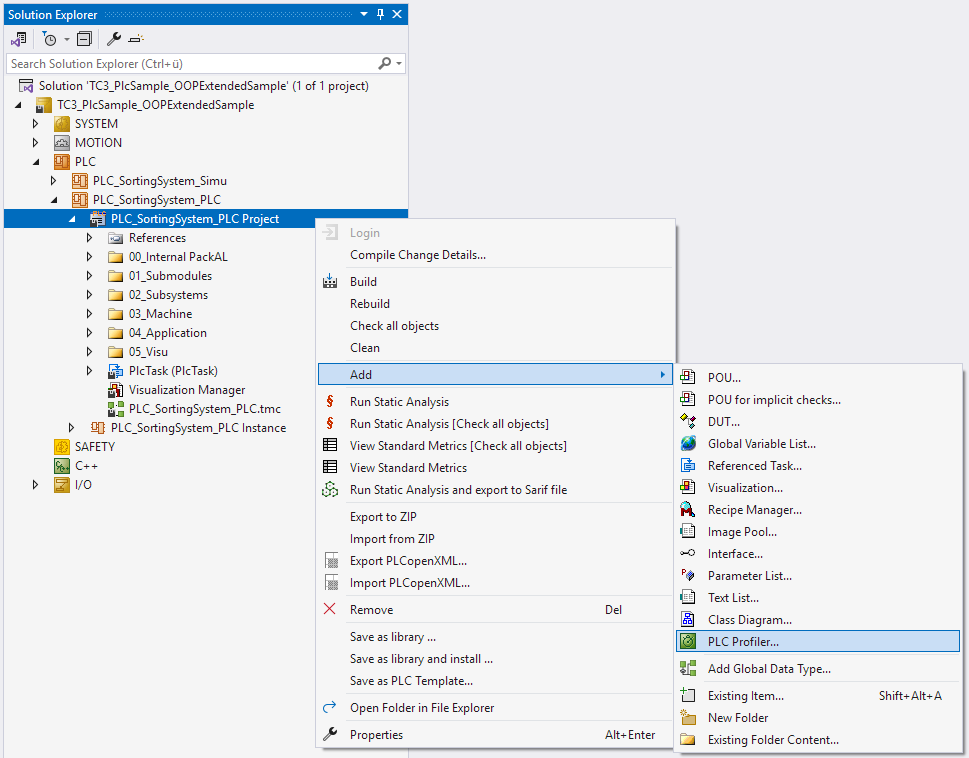
- 2. Assign a name for the configuration and select whether to create it as a blacklist or a whitelist.
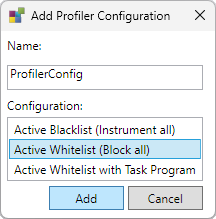
- 3. Confirm with Add.
- 4. Open config.xml and adjust the configuration for the profiler recording.
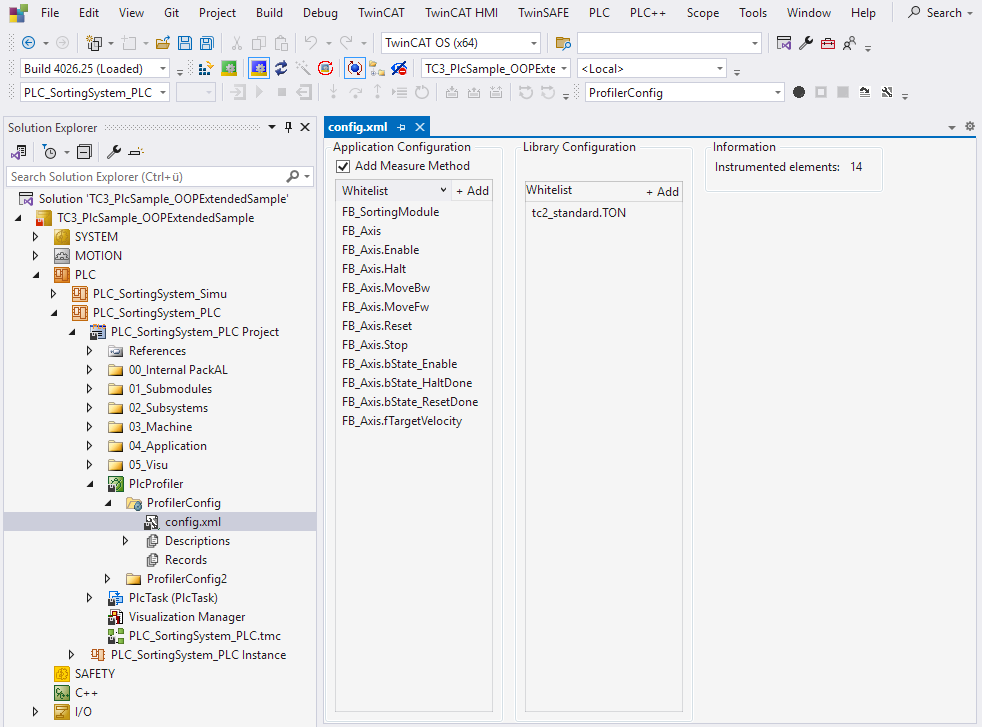
- 5. If you only create one configuration, it is automatically set to active. If there are several configurations, set the desired configuration via the context menu in the project tree.
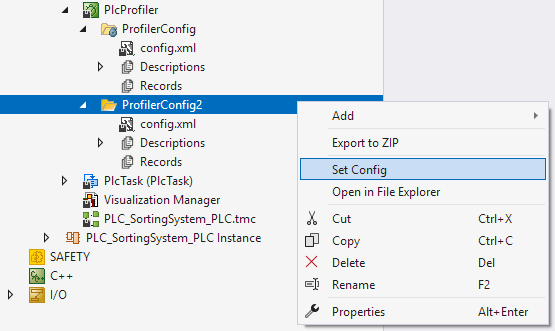
- 6. Compile the PLC project and carry out a download or enable the configuration.
- 7. Start the PLC.
- 8. Start a recording via the toolbar.

- 9. Profiler recording begins.
- 10. Stop the recording via the toolbar.

- 11. Open the Records window.
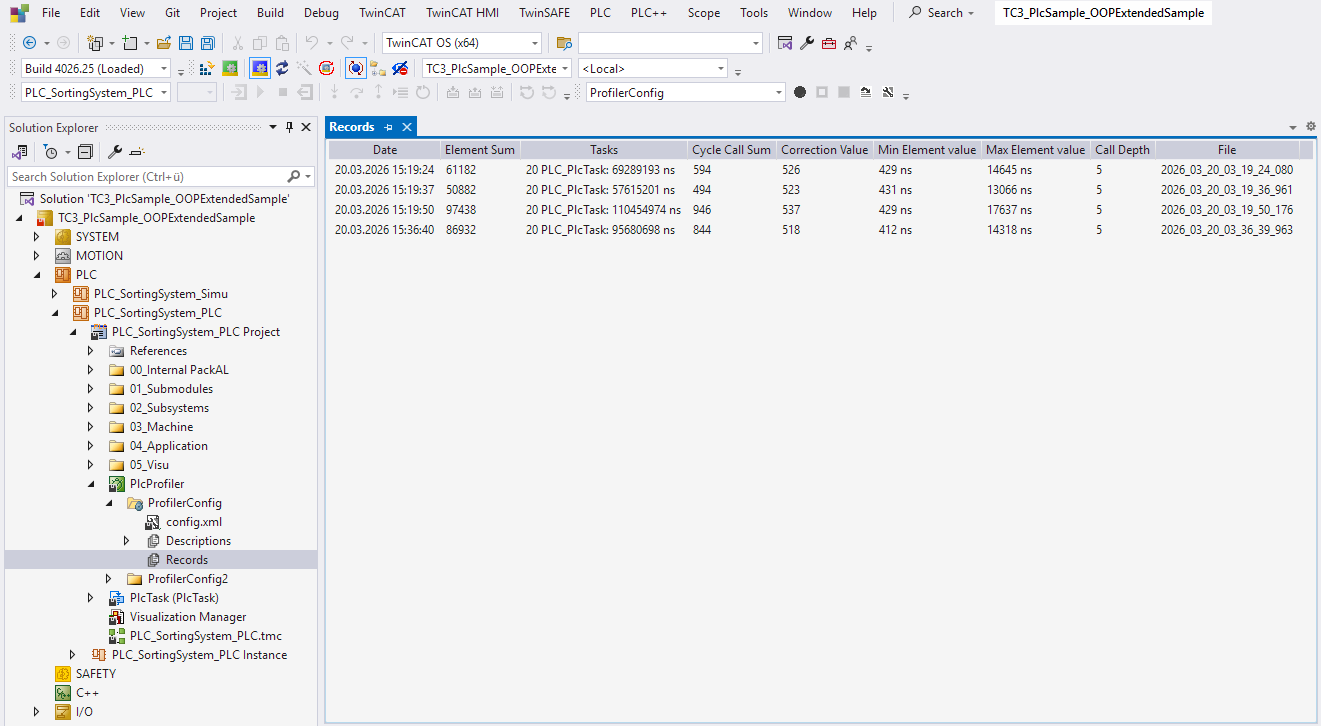
- 12. Select the report of your choice.
- 13. Right-click to open the context menu.
- 14. Click on Analyze.
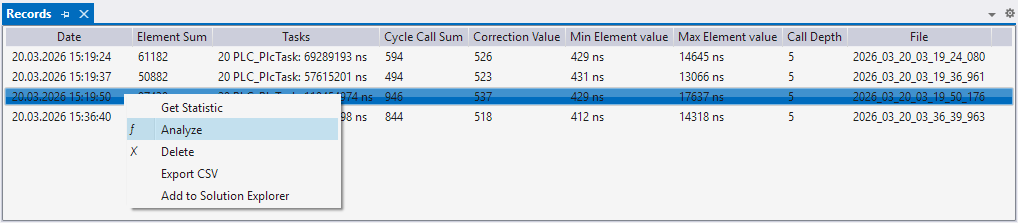
- The Report View opens and you can analyze the recording