Main Window
When you open the TwinCAT Package Manager, you will see the main window.
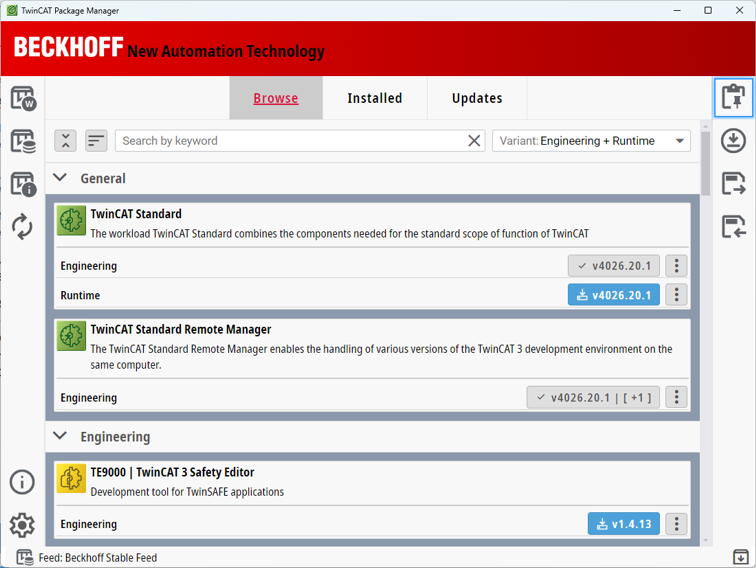
Buttons on the left side
On the left-hand side of the main window, you will find the buttons arranged one below the other, which are explained below.
Button | Name | Description |
|---|---|---|
| Package View | Sets whether workloads or packages are displayed in the selection list. We recommend the installation and use of workloads. |
| Feed | Displays the current feeds in the specified order. The active feed can be changed here. |
| Workload/Package Details | Opens the detail area and closes it when clicked again. |
| Reload Information | Reloads the information. |
| Information | Displays information on the current TwinCAT package manager version. |
| Settings | Opens the settings. |


Software list
The software list shows all available TwinCAT products for your set feed. It is divided into groupings according to the product numbers. The only exceptions are the Standard and Other groupings. Depending on the product, there may be an engineering and/or a runtime variant for the individual workloads. These are displayed under the respective product.
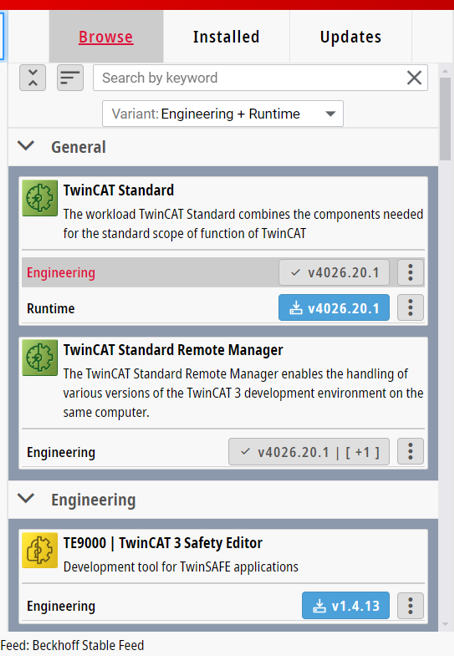
Tab/Button | Description |
|---|---|
Browse | The Browse tab displays all workloads and packages available and already installed in the selected feed. |
Installed | Only the installed workloads and packages are displayed under the Installed tab. |
Updates | All installed workloads and packages for which an update is available in the selected feed are displayed under Updates. |
Search bar | You can search for products using the search bar. |
Variant | Drop-down menu for filtering by engineering and/or runtime variants of the products. |
| Installation |
| Update |
| Installed version |
| Opens the drop-down menu for further functions. |
| Drop-down menu for additional functions |
| Opens the detail area with the list of other available versions. |
| Uninstall |
| Repair |
| Download |



Buttons on the right-hand side
On the right-hand side of the main window, you will find the buttons arranged one below the other, which are explained below.
Button | Name | Description |
|---|---|---|
| Selected Products | Opens/closes the selection list. |
| Downloads | Displays the packages/workloads to be downloaded. |
| Save Configuration | Saves the configuration. |
| Load Configuration | Loads the configuration. |
| Create a ZIP file including all log files | Creates a ZIP file with log data. |


Detail area
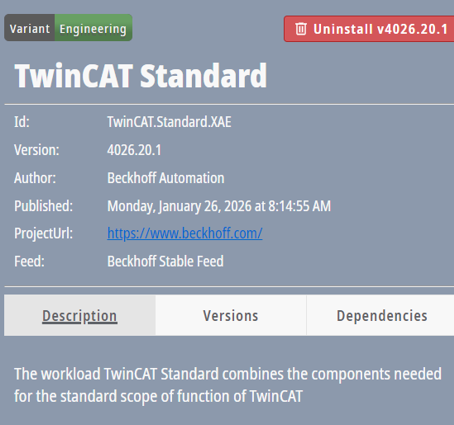
The detail area will open whenever you click on a package or workload in the software list. You close it by clicking on any other area of the main window. Alternatively, you can click on the Workload/Package Details button and then close the details area by clicking on the button again.
The detail area shows the exact description of a package or workload under the Description tab. In the upper area, the package or workload can be uninstalled using the Uninstall button.
The different versions of a package or workload are displayed under the Versions tab. In the lower area you can install, uninstall, downgrade and upgrade versions.
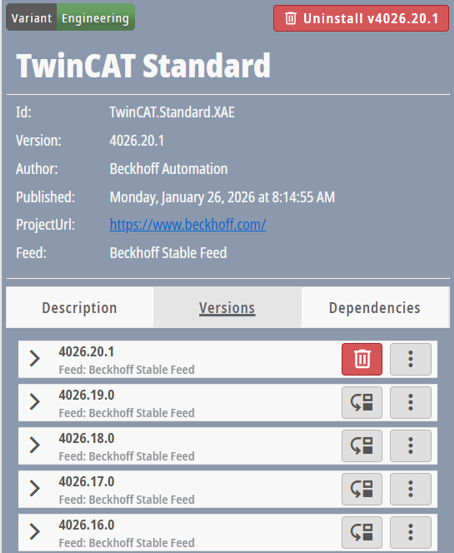
Button | Description |
|---|---|
| Uninstall this version. |
| Open further options: Download, Repair. |
| Install older version. |


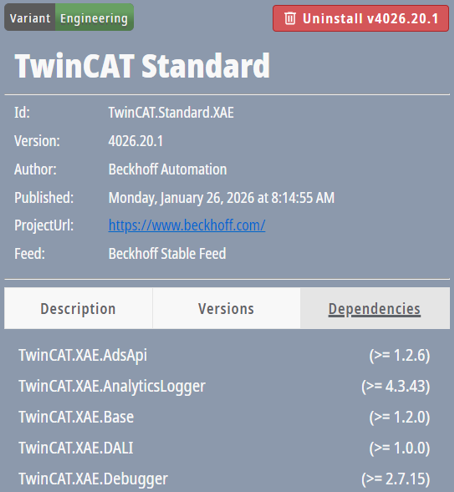
The Dependencies tab shows you the dependencies of the respective package or workload on other packages or workloads.
Selection list
The choice list contains all the settings you have selected in the software list.
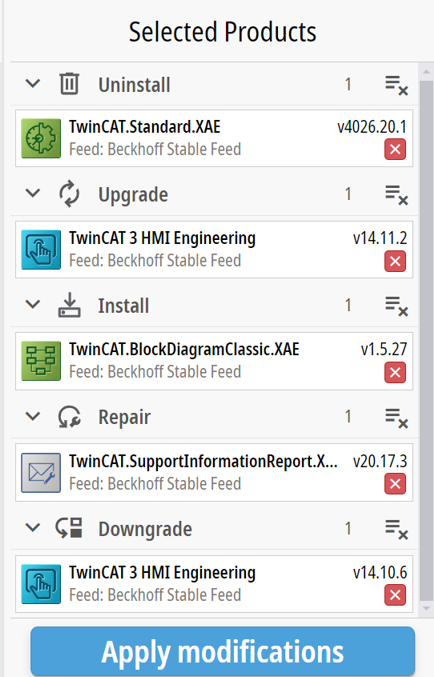
Button | Description |
|---|---|
| Delete selection. |
| Delete selection. |
| Execute choice. |


