Managing TwinCAT software
If you choose one of the configured feeds or all feeds, the software list is displayed with all available workloads or all available packages.
Activate a feed:
- 1. Click the Feeds button on the right-hand side of the main window.
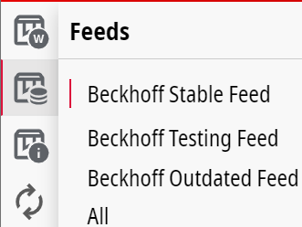
- 2. Now click on the desired feed.
- All workloads that are available for the selected feed are now displayed in the software list.
You can search the software list using the search bar. Only the results are automatically displayed in the list. In addition, a message bar is added to indicate that not all products are displayed.
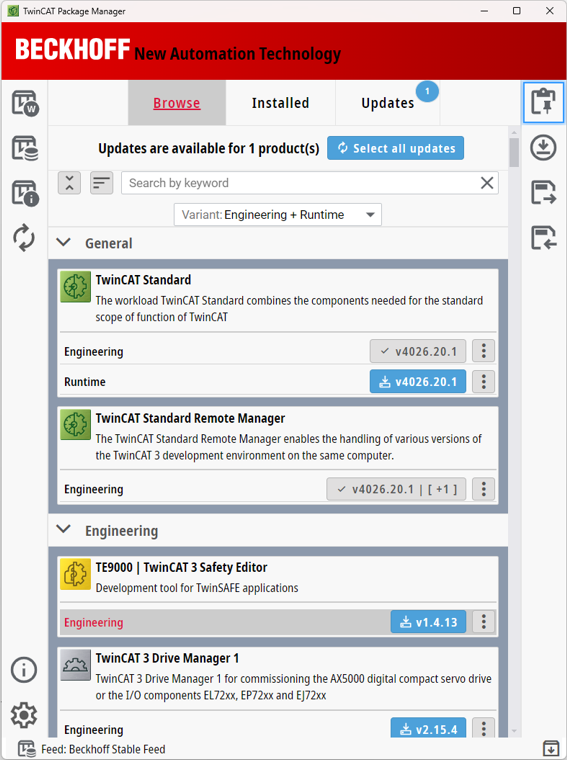
Install
- Choose the desired products from the software list with the workloads to add them to the change list.

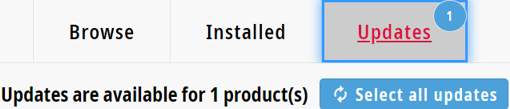
Update
- Choose the desired updates for the installed products from the software list

or
- Click Select all updates to add all possible updates to the change list.
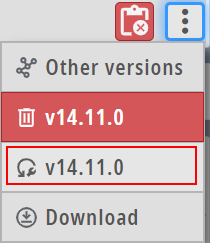
Repair
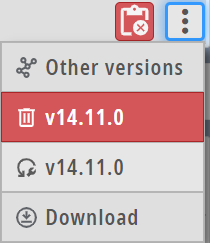
- From the software list, select the Repair menu item in the choice menu of the button with the three dots.
Uninstall
- From the software list, select the Uninstall menu item in the choice menu of the button with the three dots.
Complete the process (the same for everyone):
- Open the change list with the Selected Products button.
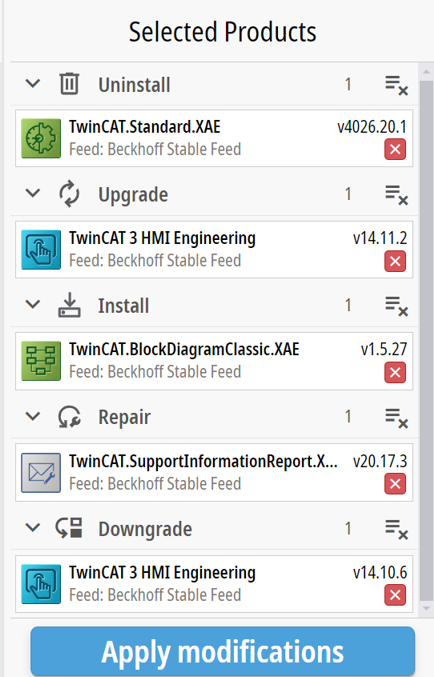
- Click on the Apply modifications button.