Accessing TwinCAT software
The TwinCAT software is provided in the TwinCAT Package Manager via so-called feeds. Various feeds are available to you:
Beckhoff Stable Feed
Feed address: https://public.tcpkg.beckhoff-cloud.com/api/v1/feeds/Stable
In this feed you will find the latest, officially released versions of TwinCAT, TwinCAT Engineering products and TwinCAT Functions.
Beckhoff Outdated Feed
Feed address: https://public.tcpkg.beckhoff-cloud.com/api/v1/feeds/outdated
In this feed you will find obsolete TwinCAT software versions such as Remote Manager versions, TwinCAT 2 x64 Engineering or the TwinCAT 2 Project Converter.
Beckhoff Testing Feed
Feed address: https://public.tcpkg.beckhoff-cloud.com/api/v1/feeds/testing
In this feed you will find pre-release versions of the TwinCAT software, which is usually officially released in the Beckhoff TwinCAT Stable Feed within the following two weeks.
Own feeds
In addition to these Beckhoff feeds, you can also create your own feeds that either point to a local directory (e.g. C:\OfflinePackages), a network drive or your own NuGet package server.
Add a new feed
- 1. If you are not in the wizard, click on the Settings button.
- The Settings window opens.
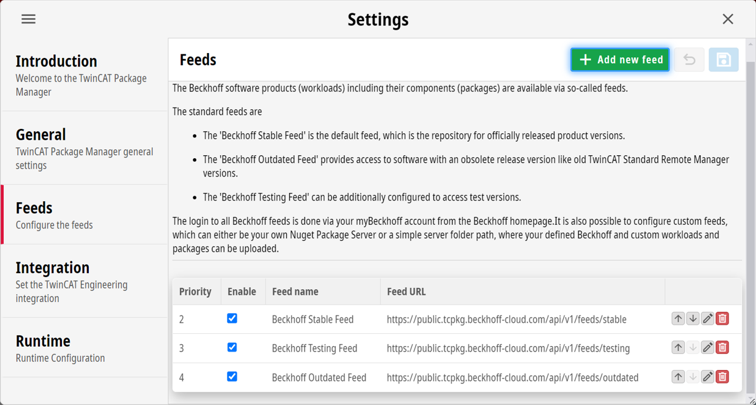
- 2. Switch to the Feeds tab.
- 3. Click the Add new feed button.
- 4. To choose a Beckhoff feed, select one of the Beckhoff feeds from the drop-down menu under Feed URL...
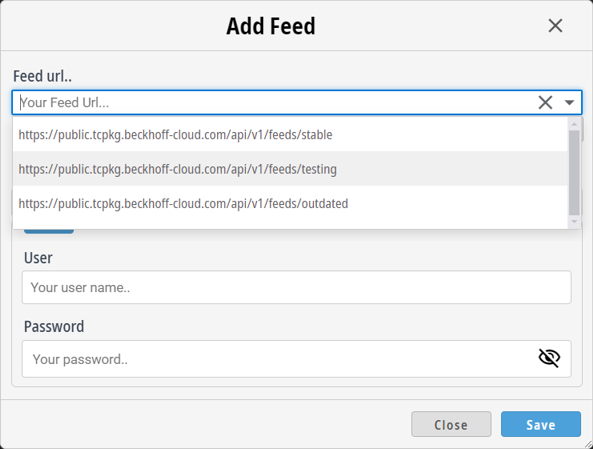
Alternatively, you can load an offline feed at this point. To choose an offline feed, click on the Choose folder button and select a local folder or network drive folder. - The name of the feed is set automatically and can be changed.
- 5. Beckhoff Feed: Enter the myBeckhoff credentials.
Offline Feed: If you have chosen a simple folder, deactivate the entry of the credentials via the Set Credentials switch element. - 6. Confirm the dialog with the Save button.
- You can now use the feed to search for, install and update software.
Change feed order
The feed order determines the priority. This determines the sequence in which the feeds are searched for package versions.
- 1. Click on the Settings button.
- The Settings window opens.
- 2. Switch to the Feeds tab.
- 3. Use the arrow buttons in the last column to adjust the order.
- 4. Click on the Save button to save the changes.
- The priority of the feeds has now been adjusted according to the order.
Change feed
- 1. Click on the Settings button.
- The Settings window opens.
- 2. Switch to the Feeds tab.
- 3. Click on the pencil button of the feed you want to change.
- 4. Change the desired configurations.
- 5. Confirm the dialog with the Save button.
- The feed has now been changed accordingly.
Delete feed
- 1. Click on the Settings button.
- The Settings window opens.
- 2. Switch to the Feeds tab.
- 3. Click on the Delete button in the column of the feed to be deleted.
- 4. Click on the Save button to save the change.
- The feed was deleted.