Using Templates
The following article describes how to use templates instead of configuring each individual setting separately via the Automation Interface. The use of templates offers many advantages: they are easier to maintain, easier to replace with new templates and they offer more options when working with several teams on a TwinCAT project. This document describes the use of templates and covers the following topics:
- The general idea behind templates and their different levels
- Working with I/O templates
- Working with movement templates (axes)
- Working with PLC templates
The general idea behind templates and their different levels
The idea behind the use of templates is as simple as the Automation Interface code and the use of the Automation Interface itself. Most users are not aware that templates can exist at different levels in a TwinCAT configuration. These include:
- Templates at "configuration level":
Templates at configuration level can exist as different TwinCAT configurations (*.sln or *.tszip file). Each configuration can contain different content and can be opened and activated by the Automation Interface code. - Templates at "(PLC) project level":
Templates at (PLC) project level can exist as multiple TwinCAT PLC projects, either as an unpacked folder structure (*.plcproj file) or as a container file (*.tpzip). These PLC projects can then be imported via the Automation Interface code if required. - Templates at "structural element level":
Templates at structural element level can exist as TwinCAT export files (*.xti). If required, these files can be imported via the Automation Interface code and contain all the settings that have been made for an EtherCAT master I/O device.
As the above description suggests, all the different template levels have one thing in common: the templates exist as files in the file system. It is considered best practice to clearly define which type of "template pool" is to be used at the beginning of the implementation of a custom Automation Interface application. A template pool describes a repository in which all template files (which can also be a mixture of different template levels) are stored. This could simply be the local (or remote) file system or a source control system (e.g. Team Foundation Server), from which template files are automatically retrieved, checked out and assembled into a new TwinCAT configuration. For a better overview and to simplify the first steps, we have created a separate documentation article that shows how the Visual Studio Object Model (DTE) is used for connection to a Team Foundation Server (TFS) and how these processes are executed via the program code. However, you can get more information about using TFS via the Automation Interface code, and we highly recommend reading the relevant articles on the Microsoft Developer Network (MSDN).
The following topics describe how each template level in the Automation Interface can be used for a different TwinCAT area (I/O, PLC, etc.).
Working with configuration templates
Templates at configuration level offer the most basic option for using templates. In this scenario, a template pool contains two or more pre-configured TwinCAT configurations and offers them as TwinCAT solution files (*.sln or *.tszip). These files can be opened via the Automation Interface using the Visual Studio method AddFromTemplate().
Code snippet (C#):
project = solution.AddFromTemplate(@"C:\TwinCAT Project.tszip", destination, projectName);Code snippet (PowerShell):
$project = $solution.AddFromTemplate(@"C:\TwinCAT Project.tszip", $destination, $projectName)OR
Code snippet (C#):
project = solution.Open(@"C:\TwinCAT Project 1.sln");Code snippet (PowerShell):
$project = $solution.Open(@"C:\TwinCAT Project 1.sln")Working with I/O templates
When working with I/O devices, users often receive the same tasks on the I/O devices again and again. This means making the same settings on the I/O devices with every TwinCAT configuration. TwinCAT offers a mechanism that saves all these settings in a special file format, the XTI file (*.xti). This file format can be used by the Automation Interface code to import a new configuration using the ImportChild() method defined in the ITcSmTreeItem interface.
Code snippet (C#):
ITcSmTreeItem io = systemManager.LookupTreeItem("TIID");
ITcSmTreeItem newIo = io.ImportChild(@"C:\IoTemplate.xti", "", true, "SomeName");
Code snippet (PowerShell):
$io = $systemManager.LookupTreeItem("TIID")
$newIo = $io.ImportChild(@"C:\IoTemplate.xti", "", true, "SomeName")
It is important to note that when exporting an I/O device within TwinCAT XAE, all sub-devices are automatically exported and are also included in the export file. The following screenshot shows how I/O devices are exported to an export file.
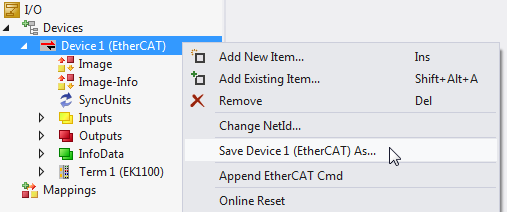
Remember that you can also use the Automation Interface to export an I/O device to an XTI file. The ExportChild() method from the ITcSmTreeItem interface is available for this purpose.
Working with movement templates (axes)
The use of motion axis templates is very similar to that of I/O devices. Axes can also be exported to an XTI file, either via TwinCAT XAE or via the Automation Interface code using ExportChild().
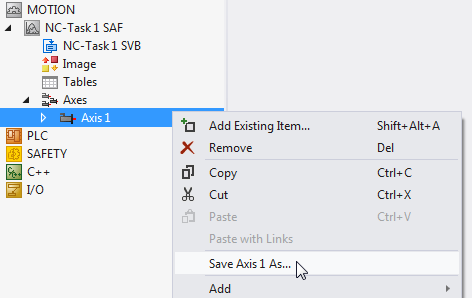
By using ImportChild(), these export files can be imported again later.
Code snippet (C#):
ITcSmTreeItem motionAxes = systemManager.LookupTreeItem("TINC^NC-Task^Axes");
motionAxes.ImportChild(@"C:\AxisTemplates.xti", "", true, "Axis 1");
Code snippet (PowerShell):
$motionAxes = $systemManager.LookupTreeItem("TINC^NC-Task^Axes")
$motionAxes.ImportChild(@"C:\AxisTemplates.xti", "", true, "Axis 1")
Working with PLC templates
PLC templates are available in two ways: You can either use the complete PLC projects as a whole or each POU individually as a template. For integration into an existing TwinCAT project, simply use the CreateChild() method of the ITcSmTreeItem interface.
Code snippet (C#):
ITcSmTreeItem plc = systemManager.LookupTreeItem("TIPC");
plc.CreateChild("NewPlcProject", 0, null, pathToTpzipOrTcProjFile);
Code snippet (PowerShell):
$plc = $systemManager.LookupTreeItem("TIPC")
$plc.CreateChild("NewPlcProject", 0, $null, $pathToTpzipOrTcProjFile)
Further options for importing existing PLC projects can be found in the best practice article on "Accessing, creating and handling PLC projects".
The next level of granularity for importing template files for the PLC is to import existing POUs, such as function blocks, structures, enumerations, global variable lists, etc. One of the reasons why a developer may opt for individual POUs as templates is that it is easier to build up a pool of existing functionalities and group them into separate POUs, e.g. different function blocks covering different sorting algorithms. When creating a project, the developer simply chooses the functionality he needs in his TwinCAT project and accesses the template tool to retrieve the corresponding POU and import it into the PLC project.
Code snippet (C#):
ITcSmTreeItem plcProject = systemManager.LookupTreeItem("TIPC^Name^Name Project");
plcProject.CreateChild("NameOfPou", 58, null, pathToPouFile);
plcProject.CreateChild(null, 58, null, stringArrayWithPathsToPouFiles);
Code snippet (PowerShell):
$plcProject = $systemManager.LookupTreeItem("TIPC^Name^Name Project")
$plcProject.CreateChild("NameOfPou", 58, $null, $pathToPouFile)
$plcProject.CreateChild($null, 58, $null, $stringArrayWithPathsToPouFiles) | Importing one or more templates The POU template file may be a .TcPou file, or the corresponding DUT/GVL files. The above example shows two common ways of importing POU template files. The first is to import a single file, the second is to import multiple files at once by storing the file paths in a string array and using this string array as the vInfo parameter of CreateChild(). |