C++ project commands and properties
In addition to creating and opening projects, the TwinCAT Automation Interface can manage C++ projects programmatically. Project commands, such as starting the TMC code generator or publishing modules, are triggered on the project node via ConsumeXml(). To do this, an XML fragment is passed that describes the action to be performed. TwinCAT XAE processes the XML and executes the corresponding command. Using the same pattern, project properties can be read via ProduceXml() and written via ConsumeXml().
Calling the TMC code generator
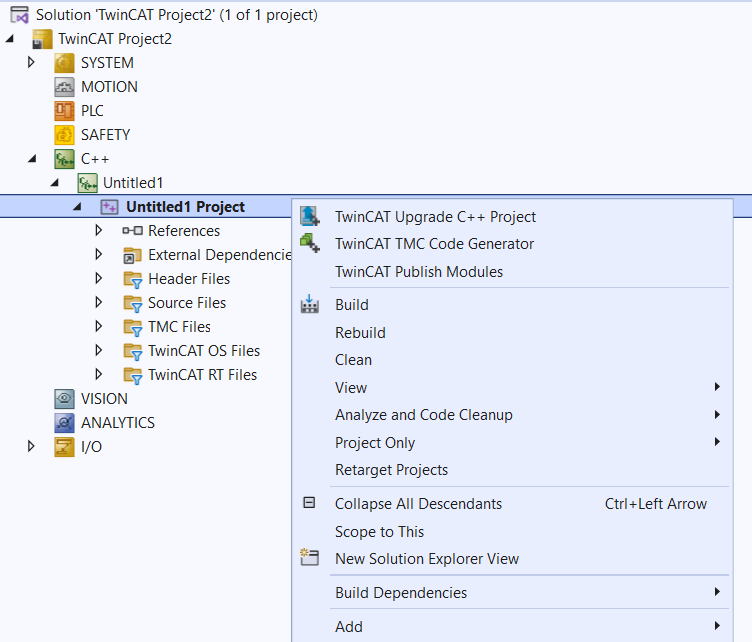
The TMC code generator reads the .tmc file of a C++ project and uses it to generate or update the corresponding C++ class stubs. This step is required after every change to the TMC file to ensure that the generated C++ code matches the module description. Calling the code generator via the Automation Interface is equivalent to manually starting it using the Run TMC Code Generator context menu option on the project node in the IDE. The result is the same: The generated .cpp and .h files in the project are updated.
C#:
string startTmcCodeGenerator = @"<?xml version=""1.0"" encoding=""UTF-16""?>
<TreeItem>
  <CppProjectDef>
    <Methods>
      <StartTmcCodeGenerator>
        <Active>true</Active>
      </StartTmcCodeGenerator>
    </Methods>
  </CppProjectDef>
</TreeItem>";

// Trigger the TMC code generator by consuming the action XML on the project node
cppProject.ConsumeXml(startTmcCodeGenerator);
PowerShell:
$startTmcCodeGenerator = @"<?xml version=""1.0"" encoding=""UTF-16""?>
<TreeItem>
  <CppProjectDef>
    <Methods>
      <StartTmcCodeGenerator>
        <Active>true</Active>
      </StartTmcCodeGenerator>
    </Methods>
  </CppProjectDef>
</TreeItem>"
$cppProject.ConsumeXml($startTmcCodeGenerator)
Calling the Publish Modules command
The Publish Modules command publishes the compiled modules of a C++ project to the TwinCAT module system. After publication, the modules appear in the TwinCAT module list and can be referenced in the module instantiation of other TwinCAT projects on the same or other target systems. This command corresponds to the manual Publish Modules call via the project node's context menu and is also triggered by selecting ConsumeXml() on the C++ project node.
string publishModules = @"<?xml version=""1.0"" encoding=""UTF-16""?>
<TreeItem>
  <CppProjectDef>
    <Methods>
      <PublishModules>
        <Active>true</Active>
      </PublishModules>
    </Methods>
  </CppProjectDef>
</TreeItem>";

// Trigger the Publish Modules command on the C++ project node
cppProject.ConsumeXml(publishModules);
Setting C++ project properties
The project properties of the C++ node can be accessed via the XML interface. The current settings are read as XML using ProduceXml(). Changes are written back using ConsumeXml(). The following sample shows how to configure the encryption settings for the boot project as well as the archiving options for target system and file archives.
The value "None" completely disables encryption. "Target" generates device-specific encryption that is tied to the specific target system. The SaveProjectSources fields control whether the project's source files are included when creating an archive.
string projProps = @"<?xml version=""1.0"" encoding=""UTF-16""?>
<TreeItem>
  <CppProjectDef>
    <BootProjectEncryption>Target</BootProjectEncryption>
    <TargetArchiveSettings>
      <SaveProjectSources>false</SaveProjectSources>
    </TargetArchiveSettings>
    <FileArchiveSettings>
      <SaveProjectSources>false</SaveProjectSources>
    </FileArchiveSettings>
  </CppProjectDef>
</TreeItem>";

// Apply C++ project properties via ConsumeXml
cppProject.ConsumeXml(projProps);
Building the project
To build the C++ project or the entire solution, you can use the methods of the Visual Studio automation API. For more information on this topic, see the articles L02-solution-konfiguration.md and C02-plc-projekt-kompilieren.md.