Button Scan PNIO Devices
This feature is comparable with the ScanBoxes feature, which is only available in CONFIG mode.
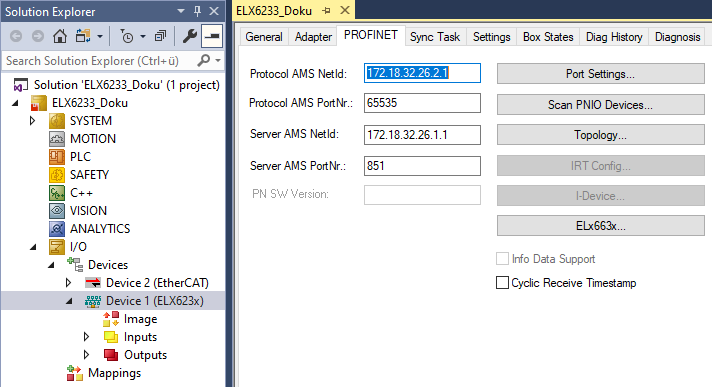 Fig.20: Scan PNIO Devices
After successful scanning the following dialog opens (if devices were found).
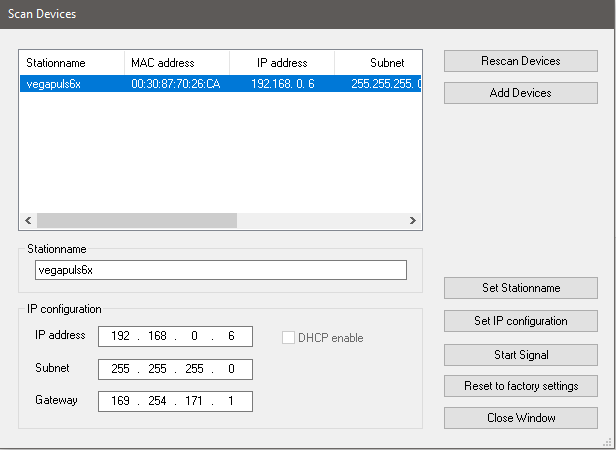 Fig.21: Scan Devices dialog
Various device settings and configurations can be made here. These are adopted only when the corresponding button is explicitly pressed. When setting the name, care must be taken that only PROFINET-compliant characters are used. This also applies to the IP address; only valid combinations of IP and subnet are to be used. Name and IP are checked for correctness when setting PROFINET devices. If this is not the case, DCP_SET is acknowledged with an error. By pressing the Rescan button, any changes that were made can be read back.
In addition the selected device can be signaled. This functionality is PROFINET-specific. The signaling is vendor-specific. However, the standard is that the signal must arrive at a frequency of 2 Hz.
As an example, the Beckhoff BK9103 Bus Coupler signals itself by alternately flashing two LEDs at 2 Hz. This function is very helpful for identifying the devices in this list. Press the button again to stop the flashing. The flashing is stopped by closing the Scan Devices window.
Subsequently, one or more devices can be marked with the Ctrl button. Press Add Devices to add the selected devices to the project.
 | Devices GSDML The associated devices GSDML must be located in the folder |
Upon pressing Add Devices, the following prompt appears:
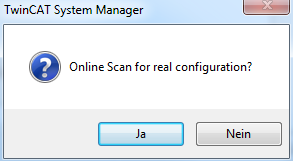 Fig.22: Confirmation Add Devices
Yes button
An attempt is initially made to determine the ModuleIdentNumber of the DAP (Device Access Point) by an implicit read access. If this fails, a corresponding dialog opens with the possible DAPs, which must be selected manually.
After all box modules have been appended, a Reload Devices is performed automatically, i.e. the devices (adapters) created are transferred to the PROFINET driver. A distinction is then made as to whether the box is a normal device or a drive with Profidrive support.
In the case of a normal device, the real module configuration (RealIdentificationData) is read out again via an implicit read access. With a Profidrive device, however, the required information is read out via Profidrive access. A Supervisor AR is established for this purpose. The required write accesses can take place within this. The Submodule interface on the DAP is used here as the Parameter Access Point. Parameters are accessed via data record 47, similar to PROFIBUS. When using Sinamics, however, it must be noted that such an access is only permitted from version 4.3 SP2. If an older version is used, a corresponding error message appears and the parameterization must take place manually.
Once the automatic module parameterization has been completed, the prompt to automatically read in the port data appears. Here again, the port interconnection of the individual devices is read out via an implicit read access.
The real port interconnection must be known for various services. These can simply be diagnostic services, but the automatic device start-up also requires this (via alias), or the creation of the IRT planning.
If this dialog is acknowledged with No or the read access has failed, such interconnection can also be carried out manually in the TwinCAT project on the individual ports.
If the port interconnection has been successfully generated automatically, in the case of an IRT controller (e.g. configuration on an EL/ELX6233), you will be asked whether all devices (if they support it) should be automatically switched to IRT mode (RTClass3).
If the answer is yes, the cable length on all configured ports is also set to 10 m copper cable. The IRT algorithm requires this information for the calculation of the signal propagation times. The precise cable length is not so important here (approx. +/-10 m), because the propagation delays tend to be small at 100 Mbit/s (5 ns/m). If automatic switching is not to take place immediately, these points can also be changed later either on the protocol or on the individual devices (on the interface or port submodule).
No button
For each device a check is performed to ascertain whether the GSDML is present in the respective folder
(..\TwinCAT\Io\ProfiNet). If this is the case, the list of possible DAPs is read in. A selection dialog is then opened to select the corresponding DAP.
Once the devices have been added to the project, you can then go to the API under the box and add the modules and submodules manually.