Replacing the storage media
Disposal of storage media
Delete confidential or technologically important data from the storage media before disposing of it. If a storage medium is defective, you must destroy it mechanically to prevent access to the data.
The old storage media must be disposed of in accordance with the national electronic waste regulations.
For new storage media, please contact your Beckhoff Sales only. Hard disks from Beckhoff are optimized for industrial applications. SSDs from Beckhoff have a considerably higher lifetime expectancy than commercially available SSDs.
Data transmission before replacement
If you want to exchange a storage medium according to Beckhoff's recommendation, you must copy the data from the old to the new storage medium. You can use the Beckhoff Service Tool (BST) for this purpose. BST is a graphical backup and restore program for devices with a Windows operating system. You can create an image of your operating system and use it to back up the operating system. Then you can restore the created image to a new data carrier. The BST is available on a bootable BST USB flash drive. This includes Windows and a backup tool. Select the size of the BST USB flash drive according to the size of the backup copy of your operating system. You can then keep the flash drive as a backup copy. For this purpose, the BST USB flash drives are designed for particularly long data preservation by means of special flash. For more information on the function of the BST, please refer to the corresponding manual.
If your storage medium is defective and there is no backup, Beckhoff Service can provide you with a fresh Windows image. For this to be possible, your Beckhoff device must already have been delivered with a valid operating system license. After installing the fresh image, the applications must be reinstalled.
Chapter 7.2.1 Access to device components shows how to access the storage media. Before replacing an NVMeTM M.2 SSD, you must shut down and power off the device.
Hard disks that are located in a removable frame and a RAID array can also be replaced during operation. In this case, you do not need to switch off the industrial PC before replacing it. Your device comes with a red accessory cover that contains keys. Use the key pair without the black key cover to open a removable frame. For the replacement of hard disks in a mounting adapter, contact Beckhoff Service.
Replacing the NVMeTM M.2 SSD
The basic configuration includes a 160 GB NVMeTM M.2 SSD on the motherboard of your device. Alternatively, you can order your device with one of the following on-board SSDs:
Ordering option | Memory size |
|---|---|
C9900-H824 | 320 GB |
C9900-H825 | 640 GB |
C9900-H843 | 1280 GB |
You can also install additional NVMeTM M.2 SSDs as PCIe® plug-in cards in your device. The following ordering options are available:
Ordering option | Memory size |
|---|---|
C9900-H814 | 160 GB |
C9900-H815 | 320 GB |
C9900-H816 | 640 GB |
C9900-H839 | 1280 GB |
You can mirror the NVMeTM M.2 SSD on your device's motherboard to another NVMeTM M.2 SSD in a RAID 1 array. The prerequisite for this is that you have inserted an SSD with the same size as the on-board SSD as a PCIe® plug-in card. The following figure shows the numbering of the plug-in card slots.
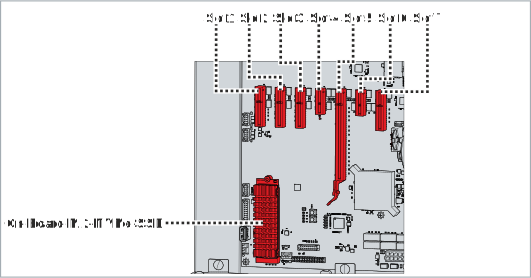 Fig.42: Numbering of PCIe® plug-in card slots
The plug-in card slots are always fitted in the following order:
- On-board M.2 NVMeTM (basic equipment)
- Slot 1 (PCIe® x4 Gen4)
- Slot 2 (PCIe® x4 Gen4)
- Slot 5 (PCIe® x16 Gen4)
- Slot 3 (PCIe® x4 Gen3)
- Slot 7 (PCIe® x4 Gen3)
To replace the NVMeTM M.2 SSD on your motherboard, follow the steps below:
- 1. Remove the M3 screw (section A).
- 2. Place the SSD in an inclined upward position (section B).
- 3. Remove the SSD (section B).
- 4. Insert the new SSD in an inclined position.
- 5. Press the SSD down.
- 6. Retighten the M3 screw.
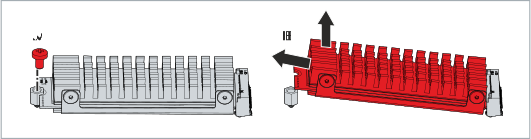 Fig.43: Replacing the NVMeTM M.2 SSD
- You have replaced the NVMeTM M.2 SSD on the motherboard.
Hard disk replacement
You can optionally equip your device with hard disks. To replace a hard disk on the drive tower, proceed as follows:
- 1. Loosen and remove the four UNC 3.5x6.35 screws from the mounting adapter (section A).
- 2. Remove the hard disk upwards from the mounting adapter (section B).
- You have removed the hard disk.
- 3. Insert the new hard disk into the mounting adapter from above. The manufacturer's sticker must be facing upwards.
- 4. Screw the four UNC 3.5x6.35 screws on the mounting adapter again.
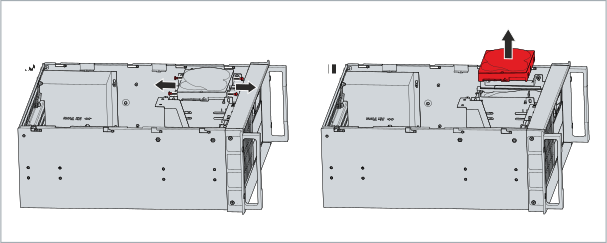 Fig.44: Hard disk removal
- You have replaced the hard disk.
To replace a hard disk in the removable frame, proceed as follows:
- 1. Open the front flap (see chapter 3.2 Interface description).
- 2. Unlock the removable frame with the corresponding key (section A).
- 3. Pull the key of the removable frame to unlock it (section B).
- 4. Open the removable frame (section C).
- The hard disk is pushed out of the removable frame.
- 5. Pull the hard disk out of the removable frame (section D).
- 6. Insert the new hard disk into the removable frame with the manufacturer’s sticker facing upwards.
- 7. Close the removable frame again.
- 8. Lock the removable frame again.
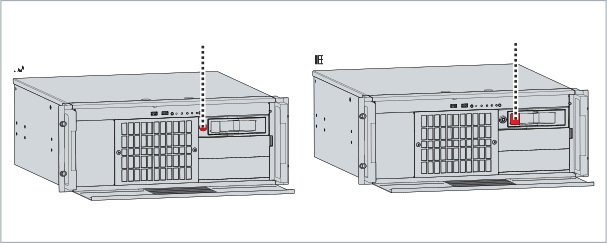 Fig.45: Unlocking removable frame
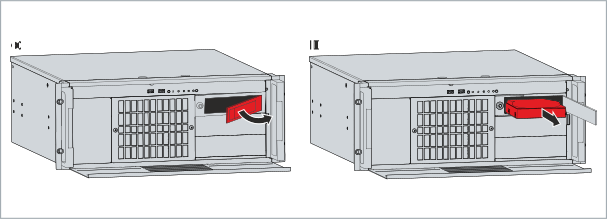 Fig.46: Hard disk removal
- You have replaced the hard disk.