Managing files with the WinSCP client
WinSCP (Windows Secure Copy) is an open source software with which a connection can be established via FTP, FTPS, SCP, SFTP, WebDAV or S3h.
Use WinSCP to establish an SFTP connection under Windows to an industrial PC running Beckhoff RT Linux®. After a successful connection, a graphical user interface is launched, enabling secure data and file transfer to the industrial PC running Beckhoff RT Linux®. WinSCP can be used to copy files to Beckhoff RT Linux® directories, create new directories, and edit files.
Prerequisites:
- Download WinSCP at: https://winscp.net/
Configure new session
- 1. Start WinSCP.
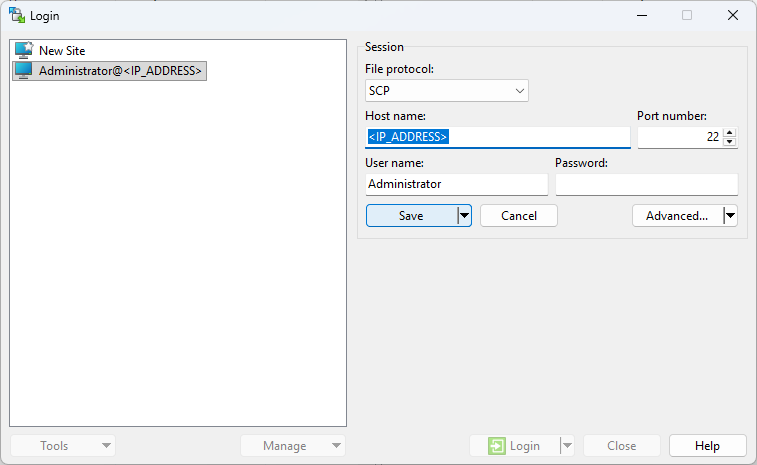
- 2. Set the following parameters for a new session:
- File protocol: SCP
- Host name: <IP_ADDRESS> (replace this with the actual IP address of your Beckhoff RT Linux® Industrial PC)
- Port number: 22
- User name: Administrator
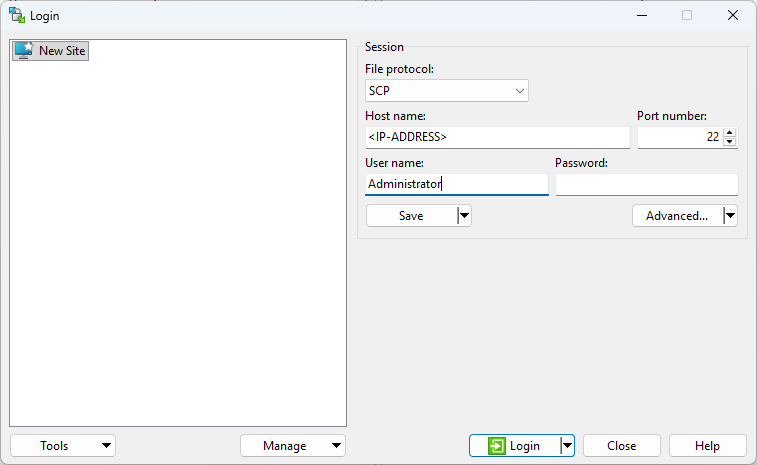
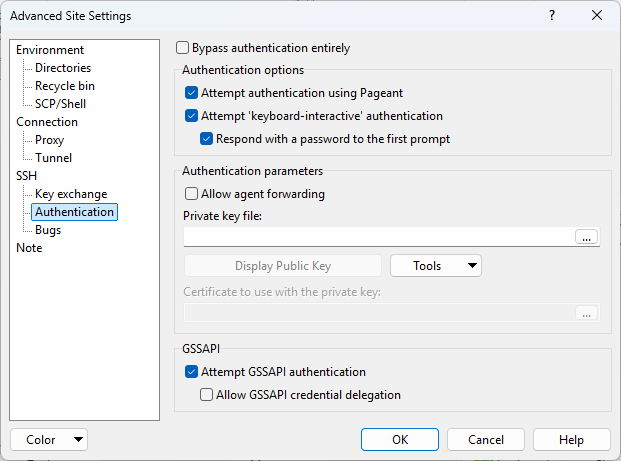
- 3. Then click on Advanced... to open the advanced settings.
- Navigate to SSH > Authentication on the left.
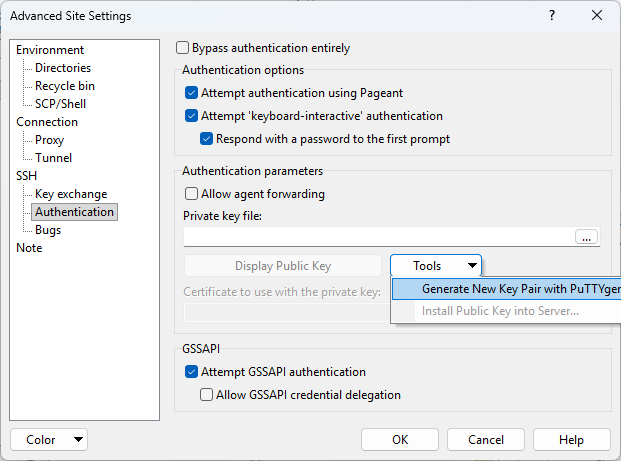
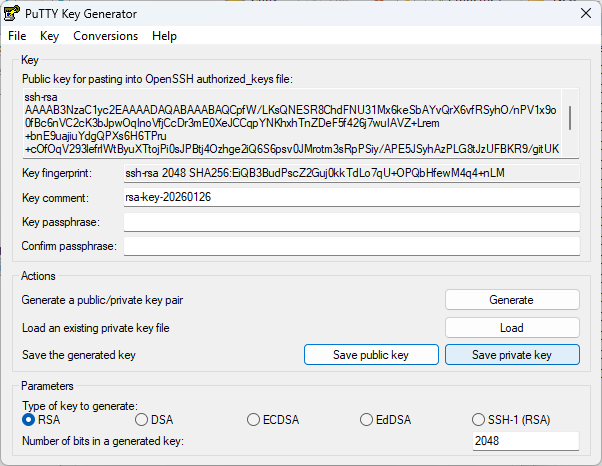
- 4. In the Authentication section, click on Tools -> Generate New Key Pair with PuTTYgen.
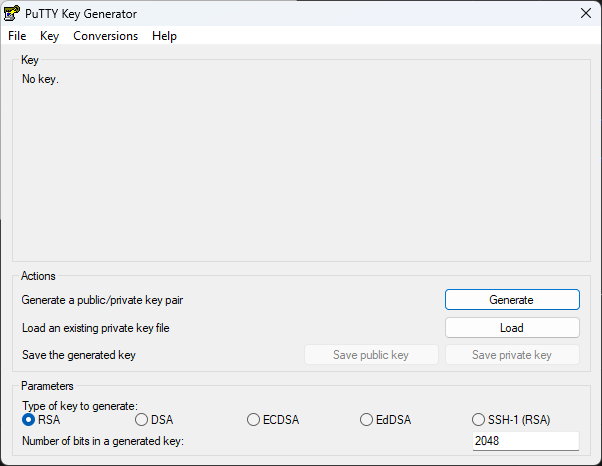
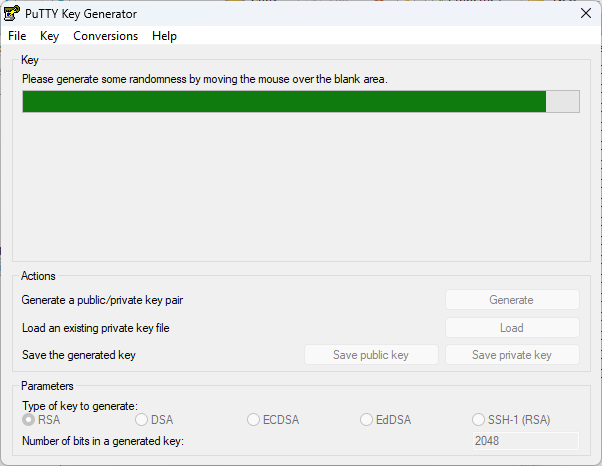
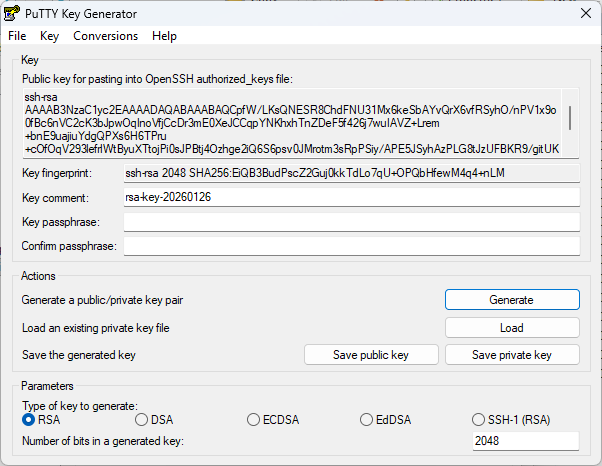
- 5. Click Generate in the PuTTY Key Generator window and follow the instructions to generate a random key pair.
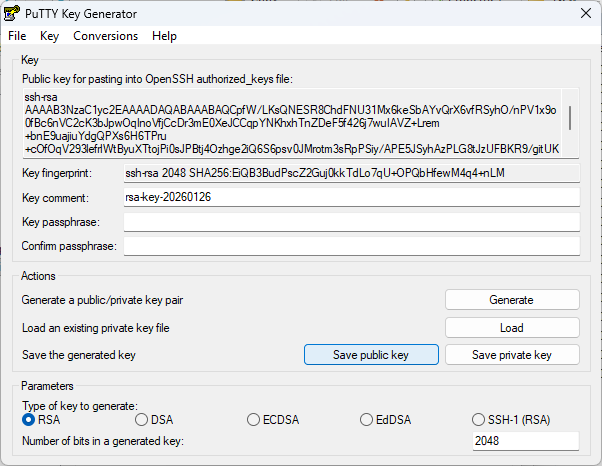
- 6. Once the key pair has been created, save both the public and the private key on your local computer.
- 7. Click on Save private key and select a secure storage location on your local computer.
- 8. Click on Save public key and select a storage location for the public key.
- 9. Close the window and return to the Advanced options. Choose the private key file you have just saved by clicking on the [...] button next to the Private key file field.
- 10. Open PowerShell and copy the following command to the command line, but do not execute it yet.
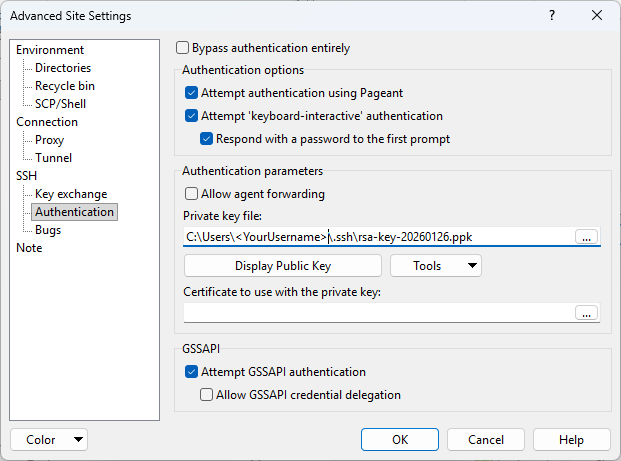
Get-Clipboard -Raw | ssh Administrator@<IP_ADDRESS> "mkdir -p ~/.ssh && cat >> ~/.ssh/authorized_keys"- 11. Click on Display Public Key and then on Copy Key to copy the public key to the clipboard.
- 12. Click OK to close the Advanced Site Settings window and save your settings.
- Now click on Login to establish the connection to the Beckhoff RT Linux® Industrial PC. The connection should be established without a password prompt.