List of installed services
systemd is the central toolbox for managing services in a Linux® system. Services are programs that run in the background and provide certain system or application functions, such as network access, system monitoring or TwinCAT system services. In Beckhoff RT Linux®, systemd is used to start, stop and monitor these services uniformly during their runtime.
What are units in systemd?
In systemd, all managed objects are referred to as units. A unit describes a resource or function that systemd can control. These include services (.service), mounts (.mount), and sockets (.sockets), among others.
Service units are in the foreground for system administration. A service unit describes how a service is started, monitored and ended. A service is therefore a special form of a unit.
To list all installed unit files, use:
systemctl list-unit-files --no-pagerThe output is grouped by unit type, e.g. services (.service), mounts (.mount) and sockets (.socket). Further information on systemd unit files can be found in the section UNITS of the systemd manual.
Checking the status of a systemd unit
The status of a unit is queried using the command line tool systemctl. To obtain more detailed information on a specific service, use the command status, followed by the name of the service.
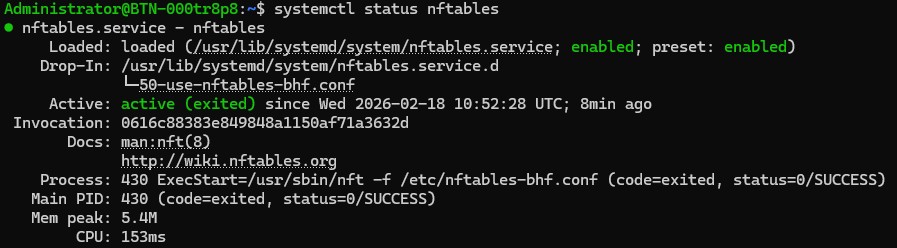
For example, to check the status of the firewall service, execute the following command:
systemctl status nftablesThe following information is displayed and enables quick diagnostics of the operating status of a service:
- Display of the current runtime status (active, inactive, failed)
- Display whether the unit is started automatically
- View current status and error messages
htop
In addition to systemd tools, htop can also be used to display and monitor running services and processes in Linux®.
htop is an interactive command line tool for monitoring processes and system resources. Among other things, it displays CPU usage, memory consumption and active processes and services in real time, making it easier to analyze the system status.
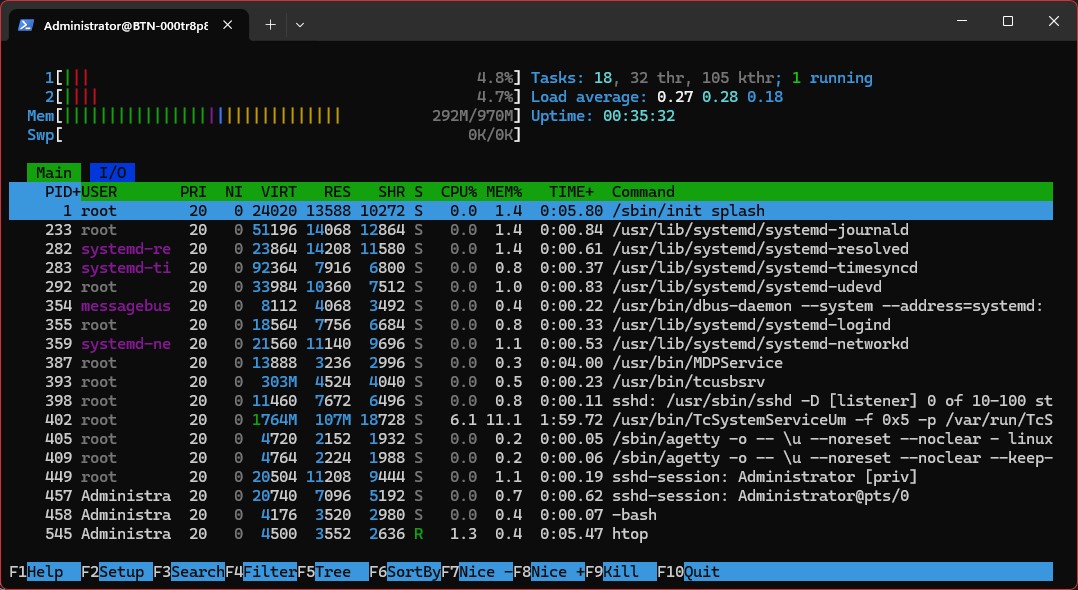
A process can appear several times in htop even though the program has only been started once. Many modern applications use multiple threads or parallel worker processes to process tasks simultaneously. htop displays these individually by default, resulting in several entries with the same name. If necessary, the thread display can be disabled by pressing SHIFT + H to show only the main processes.