Select target system
If a target system (controller) has already been used, it remains in the selection list. Depending on the presence of target systems in the selection list, the next chapter or the one after that applies.
Target system available in selection list
To commission your drive with TwinCAT, the TC3 XAE must communicate with the TC3 XAR. To do this, the controller used must be selected as the target system.

The toolbar indicates which target system is active (1)
Open the selection list using the small arrow (2) to the right of the display window
Select the drive as the target system

Confirm query with Yes to change the platform settings automatically
This setting can be found in the toolbar (3).
If you answer No, this setting must be made manually:
Open the platform selection list via the small arrow (4) to the right of the display window (3)
Select a system-compatible platform
→ The newly selected target system appears in the display window (1).
→ The newly selected platform appears in the display window (3).
Target system not available in selection list
If the target system is not in the selection list, follow these steps:

Select Choose Target System… from the list 1), or open System in the Solution Explorer and press Choose Target… (5)
In both cases, the Choose Target System window will appear. On the left side, you will find a list of all target systems that have already been used. This list should be identical to the previous selection list.

Find more target systems via Search (Ethernet) (6)
This opens the Add Route window.

Before starting the search for more target systems, set the IP address (7) as Address Info.
Start the search with Broadcast Search (8)
A list with all target systems that were found is displayed.

Select the required target system
Create link using Add Route (9)
You will see a password prompt for the embedded PC.

Enter the required password (The Beckhoff default password for Windows 7 is “1”).
Confirm entries with OK
Close the Add Route window with Close (10)
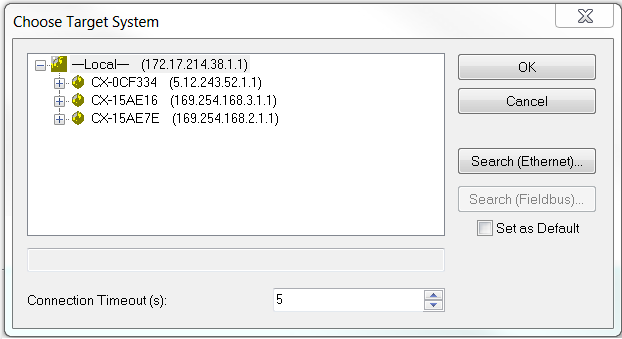
Select the newly added target system
Confirm with OK
Because the platform to be used depends on the respective target system, the platform also needs to be adjusted if the target system is changed.
Confirm query with Yes to change the platform settings automatically
This setting can be found in the toolbar (3).
If you answer No, this setting must be made manually:
Open the platform selection list via the small arrow (4) to the right of the display window (3)
Select a system-compatible platform
→ The newly selected target system appears in the display window (1).
→ The newly selected platform appears in the display window (3).